
Search what is DKIM and most explainers will tell you it survives forwarding in a way SPF doesn’t. Then they stop there, as if that settles the question. It doesn’t. DKIM signs the body and a defined set of headers, and that signature holds up through simple relaying.
Simple relaying means one mail server passing a message to the next without touching its content. It does not hold up through a mailing list that adds a footer. It does not survive a forwarding rule that rewrites the subject line, or a security gateway that inserts a banner. A signature that was perfectly valid when the message left your server fails the moment it lands somewhere that modified it along the way.
That gap between the marketed claim and what actually happens in a real mail path is where a lot of authentication headaches start. You set up DKIM, test it from your own inbox, watch it pass, and move on. Weeks later a DMARC report shows a source failing DKIM that you didn’t even know was sending on your behalf. Or a colleague forwards you a message and it’s landed in spam. Neither one is DKIM being broken. It’s DKIM doing exactly what it was built to do: refusing to validate a message that changed after it was signed.
This guide covers what DKIM actually is and how the signing and verification process works stage by stage. It walks through the full record syntax, not just the five tags most explainers stop at. And it covers what genuinely breaks a signature, what doesn’t, and how to rotate your keys without a coverage gap. You may have read a DKIM explainer before and still weren’t sure why your own reports look the way they do. That’s the gap this one is built to close.
TL;DR on DKIM
- DKIM (DomainKeys Identified Mail) adds a cryptographic signature to outgoing email, proving it came from the claimed domain and wasn’t altered in transit.
- A DKIM record is a DNS TXT record published under a selector, formatted as selector._domainkey.yourdomain.com, holding the key receivers use to verify it.
- DKIM implementation runs through five stages: generate a key pair, publish it in DNS, sign outgoing mail, verify on arrival, and rotate keys regularly.
- Google, Microsoft, and Yahoo all push 2048-bit RSA keys in practice, even though the DKIM specification’s technical floor is 1024 bits.
- A signature valid at send time can still fail DKIM if a mailing list, forwarding rule, or security gateway changes the message afterward.
- DKIM confirms message integrity and sender authorization, not who’s allowed to use the visible “From” address; that enforcement is DMARC’s job.
- DKIM keys should be rotated roughly every 6 to 12 months, publishing the new selector alongside the old one during a short overlap.
- Correct DKIM configuration confirms who sent a message; it says nothing about whether the recipient address is even real.
What Is DKIM? (And How It’s Different From SPF and DMARC)
So what is DKIM, exactly? DKIM stands for DomainKeys Identified Mail. It’s an email authentication method built around two guarantees. First, that a message genuinely came from the domain it claims to be from. Second, that nobody changed its content after it was signed.
The mechanism goes back to 2004. That year, Yahoo’s DomainKeys proposal and a separate effort called Identified Internet Mail, developed at Cisco, were combined into one approach. The IETF formalized that combined approach as RFC 4871 in May 2007, with authors credited from Yahoo, Cisco, Sendmail, and PGP Corporation. A clarifying update, RFC 5672, followed in 2009. Then RFC 6376 arrived in September 2011, obsoleting both earlier documents and becoming the current specification. In 2013, RFC 6376 was elevated to STD 76, meaning DKIM isn’t just a proposal the industry mostly follows; it’s a full Internet Standard.
DKIM works alongside two other protocols you’ve likely encountered: SPF and DMARC. SPF checks whether the server sending a message is authorized to send on behalf of that domain, a permission check based on IP address. DKIM checks something different: whether the message itself, its headers and body, arrived unchanged, verified through a cryptographic signature. Neither protocol on its own stops someone from forging the visible “From” address a recipient actually sees. That’s what DMARC adds: a policy layer telling servers what to do when SPF or DKIM fail, and reporting what it saw. For the fuller picture, our guides to what SPF is and what DMARC is cover each in depth. This guide stays focused on DKIM itself.
The short version:
- SPF checks whether the sending server is authorized to send for the domain.
- DKIM checks whether the message itself was tampered with after signing.
- DMARC decides what happens to a message when SPF or DKIM fails.
None of this matters if the messages you’re authenticating are landing on invalid or abandoned addresses in the first place. DKIM proves who sent a message. It says nothing about whether the address that received it can actually receive anything. Keeping that list clean is a separate discipline worth taking just as seriously.
How DKIM Works: The DKIM Signature Lifecycle
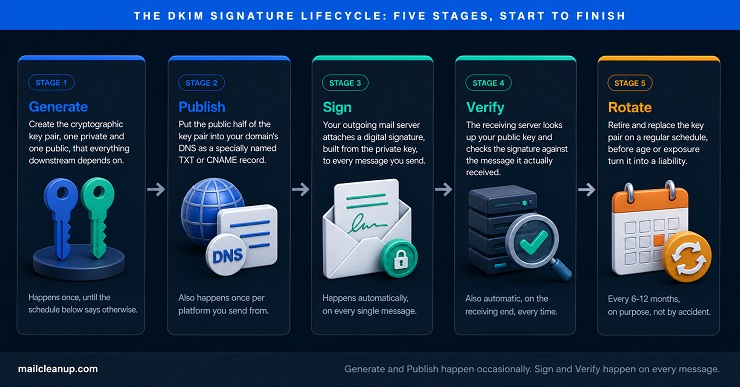
With DKIM explained at the mechanism level, the next question is how that plays out in a real message’s path. We think about it as five stages. Understanding what is DKIM doing at each one is what separates a setup that merely exists from one you can actually trust:
- Generate: create the cryptographic key pair, one private and one public, that everything downstream depends on.
- Publish: put the public half of that pair into your domain’s DNS as a specially named TXT record.
- Sign: have your outgoing mail server attach a digital signature, built from the private key, to every message you send.
- Verify: have the receiving server look up your public key and check the signature against the message it actually received.
- Rotate: retire and replace the key pair on a regular schedule, before age or exposure turn it into a liability.
Each stage depends entirely on the one before it. A weak key at the Generate stage undermines everything that follows, no matter how carefully you publish, sign, or verify afterward. A record published under the wrong selector means Verify fails even if Sign worked perfectly. We’ll walk through all five in order, starting with the one most guides skip past in a single sentence: actually generating the key.
1. Generate: Where DKIM Implementation Actually Begins
Ask what is DKIM at a mechanical level and the honest answer starts here, with a key pair. Nothing else in the process works without one. This is also the stage most explainers compress into a single line: use a key generation tool. What that line skips is the one decision that actually matters, key length, and getting it wrong doesn’t produce an error message. It just quietly weakens everything built on top of it.
DKIM uses RSA public-key cryptography by default. RFC 6376 itself defines only RSA. A later document, RFC 8463, added Ed25519 as a second signing algorithm in 2018. The two work differently enough to be worth distinguishing before choosing between them.
Ed25519 at a glance:
- A 256-bit Ed25519 public key encodes to just 44 base64 characters, comfortably inside a single DNS TXT string, unlike a 2048-bit RSA key.
- Google has signed Gmail’s own outgoing mail with Ed25519 since 2019 and was the first major provider to adopt it.
- RFC 8463 requires every DKIM verifier to support it, though adoption on the signing side is still far from universal.
- A receiver’s ability to verify Ed25519 doesn’t guarantee every intermediate system in a longer delivery chain handles it the way RSA is handled everywhere.
For most senders in 2026, this isn’t really an RSA-versus-Ed25519 decision anyway. RFC 8463 explicitly supports signing a single message with both algorithms at once. Each gets its own selector, since one selector can only point to one key. A receiver then verifies with whichever algorithm it actually supports. The practical question that matters for almost every sender is still which RSA key length to generate. RSA remains the algorithm every major platform defaults to. That choice depends on whether you’re asking what the protocol requires or what actually holds up.
| Key Size | Where It Stands | What That Means for You |
|---|---|---|
| 1024-bit | The technical floor under RFC 8301, and the minimum Google and Yahoo’s 2024 bulk sender checks require | Acceptable only if your specific platform genuinely can’t generate anything longer |
| 2048-bit | Not mandated by the RFC, but the size Google’s own admin guidance, Microsoft, and Yahoo all steer senders toward in practice | The right default for any new DKIM implementation |
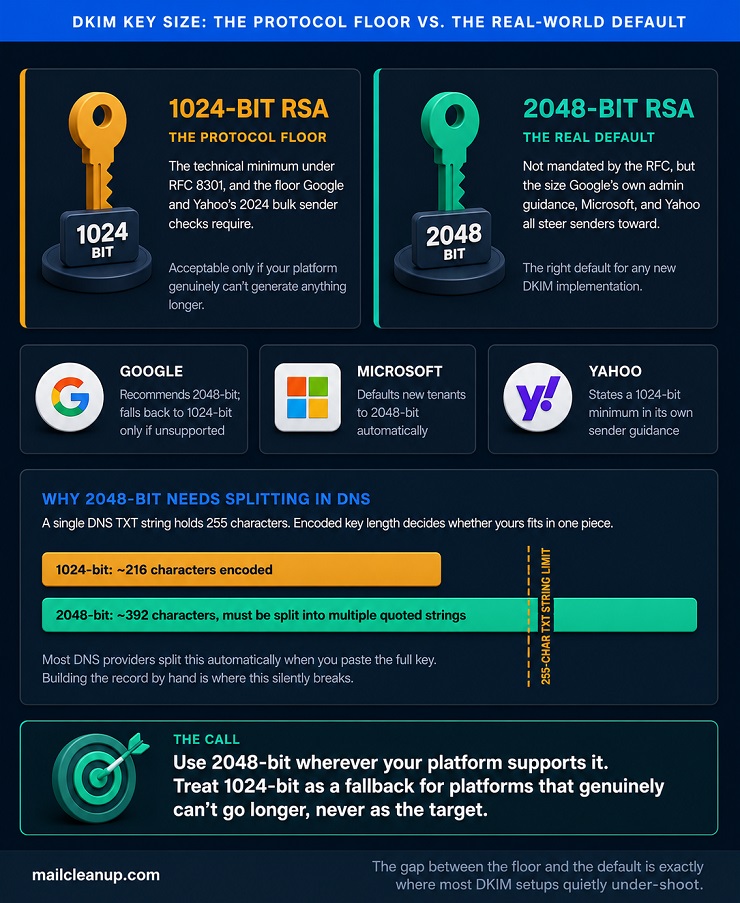
That gap between the floor and the recommendation exists because 1024-bit RSA still passes DKIM’s own protocol check. It just offers a shrinking security margin against modern factoring attacks, a distinction NIST has been flagging for years. Google’s own documentation is direct about it: use 2048-bit where your platform supports it, and treat 1024-bit as a fallback, not a target.
There’s a practical consequence to choosing 2048-bit, and it’s another detail most explainers leave out entirely. A 2048-bit public key is long enough to exceed the 255-character limit of a single DNS TXT string. Publishing it correctly means splitting the value into multiple quoted strings inside one TXT record. Most DNS providers’ interfaces handle that automatically when you paste in the full key. But it fails silently if you’re building the record by hand without realizing the limit exists. A key that looks correct in your notes can still fail to resolve if it was never split the way the format requires.
Whichever size you land on, generate the pair through your email platform’s own tools wherever one exists. Google Workspace, Microsoft 365, and most transactional ESPs generate and manage the key pair as part of setting up the record for you. Building your own pair with a tool like OpenSSL only makes sense if you’re running mail infrastructure outside a managed platform. Even then, the size guidance above still applies.
2. Publish: How to Create DKIM Record Entries for Your Domain
Generating the key pair answers what is DKIM at the cryptographic level. Publishing it is where that answer becomes something a receiving server can actually use. Your public key sits in DNS, under a name built from three parts: your selector, the fixed string _domainkey, and your domain itself. Get any one of those three wrong and the record simply won’t resolve when a receiver looks for it. Here’s what is DKIM record at its simplest: a DNS entry publishing your public key under a name nothing else on your domain uses.
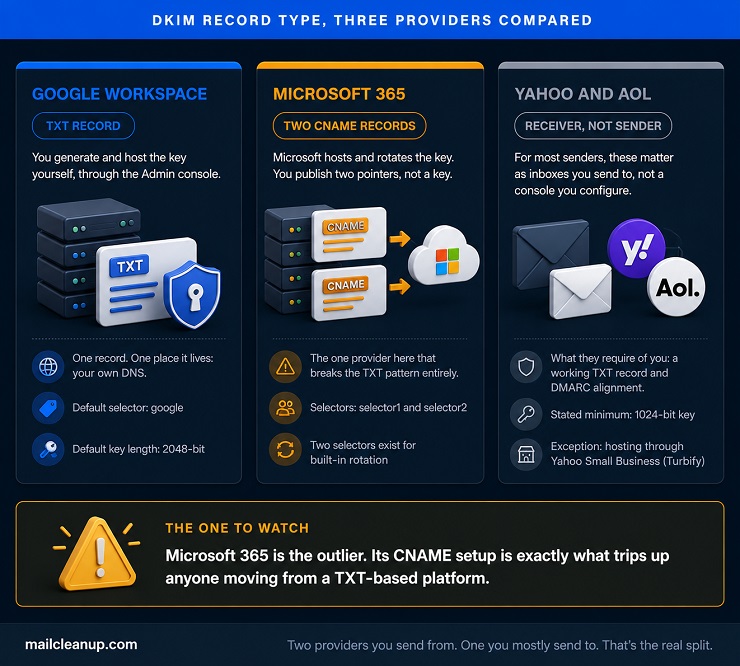
Where providers actually differ is the record type, and how much of the process they handle for you. Most platforms, Google Workspace included, publish a TXT record holding the key directly. Microsoft 365 does something different, and it’s the first thing that trips people up moving between platforms. It publishes CNAME records pointing to a key Microsoft hosts and manages, not a TXT record you paste in yourself.
Record type by provider, at a glance:
- Google Workspace: TXT record, generated and hosted by you.
- Microsoft 365: two CNAME records, hosted and rotated by Microsoft.
- Yahoo and AOL: TXT record, relevant mainly as something they require of senders sending to them.
One more thing worth knowing before the walkthroughs below. If you send mail through more than one platform, say your main mailbox provider plus a separate marketing ESP, each needs its own selector. Two DKIM records can sit at the same domain without conflict as long as their selector names differ. What actually breaks things is publishing two records under the identical selector, a DNS collision, not a rotation.
A common real version of this: Google Workspace handles your regular company email under one selector. A marketing platform like Mailchimp, or a transactional API like SendGrid, signs its own campaigns under a completely different one. Each publishes its own DKIM record under its own name, and neither is aware the other exists. We come back to this properly when we cover key rotation later in this guide. The mechanism that keeps multiple selectors from colliding is the same one that makes safe rotation possible in the first place.
Getting this step right matters beyond DKIM on its own. It’s the Authentication layer in the five-layer deliverability stack we cover elsewhere, and it sits at the base of that stack for a reason. Nothing downstream, warmup, list quality, sending behavior, works around a broken authentication layer. It only compounds whatever problem started there.
Google Workspace: The DKIM Record Format Google’s Admin Console Generates
Before generating anything, check whether a record already exists. Domains purchased through a Google partner at signup sometimes come with DKIM configured by default. Publishing a second, conflicting record is a worse starting point than no record at all. If Gmail was only just turned on for the domain, Google may also refuse to generate a key immediately. That’s a normal, temporary restriction, not a sign anything is broken, and it clears on its own shortly after.
Once you’re clear to proceed, Google generates and holds the private key for you. You never see it, and you never need to. The whole flow happens in the Admin console, under Apps, Google Workspace, Gmail, Authenticate Email. Select the domain and click Generate New Record. Google then asks two things: a key length (2048-bit is the Generate stage’s own recommendation) and a selector name. Leaving the selector as Google’s own default, google, is fine unless that exact selector is already in use somewhere on your domain.
Google hands back a single TXT record to publish, in the familiar selector._domainkey.yourdomain.com shape. Here’s a DKIM record example close to what you’ll actually see:
google._domainkey.yourdomain.com → v=DKIM1; k=rsa; p=MIGfMA0GCSq...Add that value at your DNS provider, wait for it to propagate, then return to the Authenticate Email page and click Start Authentication. Google checks the record itself and flips the domain’s status to active once it finds a match. You don’t have to guess whether propagation finished. From that point on, Google signs every outgoing message from that domain automatically. A test email to an external inbox, header checked for a DKIM pass, is the last confirmation worth running.
Microsoft 365: A Different DKIM Record Type Entirely
Microsoft 365 breaks the TXT pattern completely. Instead of one TXT record holding a key, it asks you to publish two CNAME records, selector1._domainkey and selector2._domainkey. Each points to a key Microsoft hosts and rotates on its own infrastructure, not one you paste in yourself.
| Hostname | Record Type | Points To (example) |
|---|---|---|
| selector1._domainkey | CNAME | selector1-yourdomain-com._domainkey.yourtenant.onmicrosoft.com |
| selector2._domainkey | CNAME | selector2-yourdomain-com._domainkey.yourtenant.onmicrosoft.com |
The exact values aren’t ones to type from memory or a template. Microsoft generates them per tenant and per domain. Retrieve them from the Defender portal’s DKIM page, or via the Get-DkimSigningConfig cmdlet in Exchange Online PowerShell. Two target formats exist depending on when your tenant was provisioned: an older one ending in .onmicrosoft.com, and a newer one ending in .dkim.mail.microsoft. Use whichever Microsoft’s own portal shows for your tenant, not one copied from an older guide or someone else’s example. The two formats aren’t interchangeable.
Two mistakes worth double-checking before you publish:
- A trailing dot your DNS provider adds automatically, silently doubling your domain inside the hostname.
- CNAME target values copied from an old guide instead of the exact ones your own Defender portal shows for this tenant.
Propagation is usually fast, often under an hour, but can stretch to 24-48 hours depending on your DNS provider. The signing toggle in Defender stays greyed out until Microsoft actually detects both records live. The two-selector setup isn’t redundancy for its own sake, either. It’s what lets Microsoft rotate your signing key later without a gap, the exact problem the Rotate stage below solves for manual setups too.
Once both CNAMEs resolve, return to the Defender portal’s DKIM page and toggle signing on. Only the tenant’s own onmicrosoft.com domain signs automatically. Every custom domain added afterward needs this same two-CNAME setup repeated for it individually. One testing note specific to this pairing: Microsoft’s own documentation advises against using AOL as your test recipient. The Yahoo and AOL section just below explains exactly why. Send your test to a provider that checks DKIM regardless of SPF instead. Gmail is the usual choice.
Yahoo and AOL: Why DKIM Record Syntax Here Looks Different
Yahoo and AOL don’t fit the same pattern as the two platforms above. It’s worth being direct about why, rather than forcing a parallel that doesn’t exist. Google Workspace and Microsoft 365 are places you actually send mail from, with one unified admin flow that generates keys for you. Yahoo and AOL, for the overwhelming majority of senders, matter as places you’re sending to instead. The DKIM record syntax that matters here is what they require of you as a receiver, not a sender’s console.
What Yahoo and AOL actually require of you as a sender:
- A DKIM key of at least 1024 bits, the same RFC 8301 floor covered in the Generate stage.
- DKIM alignment with your visible From domain, so DMARC can actually pass.
AOL, under the same corporate ownership as Yahoo, generally follows the same expectations rather than publishing a separate standard of its own. There’s a genuine testing trap specific to AOL worth flagging on its own, though. AOL can skip checking DKIM entirely if SPF already passed for that message. A test send to an AOL address that comes back looking clean doesn’t necessarily mean your DKIM signature actually validated. It may mean AOL never checked it at all. Confirm DKIM against a provider that evaluates it independently of SPF before trusting an AOL-only test result.
The smaller, genuine exception: if your domain’s email is hosted through Yahoo Small Business, recently rebranded Turbify, publishing DKIM looks closer to a manual process than an integrated one. Yahoo doesn’t generate a key pair for you the way Google or Microsoft do. The key comes from whatever platform you’re actually sending through, and you add it yourself, as a TXT record, through the domain’s Advanced DNS Settings panel, in the same selector._domainkey.yourdomain.com format covered earlier.
3. Sign: The Complete DKIM Record Tag Set, Not Just the Five Everyone Covers
Every stage before this one sets up for a single moment: the instant your mail server actually signs an outgoing message. That’s what is DKIM doing at its busiest. It computes a hash and encrypts it with your private key. Then it attaches the result as its own header, DKIM-Signature, to the message before it leaves your server. That header is a different thing from the DNS record covered under Publish. The DNS record sits in one place and rarely changes. This header gets built fresh for every single message you send.
The DKIM-Signature header is built from tags, name=value pairs separated by semicolons, and this is exactly where most explainers stop early. Covering five tags, v, a, d, s, and b, tells you the header exists. It doesn’t tell you what it actually protects or how a receiver evaluates it. RFC 6376 defines fourteen.
| Tag | What It Holds | Status |
|---|---|---|
| v | DKIM version, always 1 | Required |
| a | Signing algorithm; rsa-sha256 is the current standard | Required |
| b | The signature itself, base64-encoded | Required |
| bh | Hash of the message body | Required |
| d | The signing domain | Required |
| h | Which header fields were actually signed | Required |
| s | The selector, pointing to the right DNS record | Required |
| t | Timestamp the signature was created | Recommended |
| x | Expiration timestamp for the signature | Recommended |
| c | Canonicalization mode for header and body | Optional, defaults to simple/simple |
| i | Identity of the specific user or agent signing | Optional |
| l | Body length actually hashed, in bytes | Optional |
| q | Query method for finding the key | Optional, almost always dns/txt |
| z | Copies of signed headers, for diagnostics only | Optional |
Seven of those tags are load-bearing; without any one of them, the signature can’t be evaluated at all. Two more, t and x, are recommended rather than strictly required. They’re worth including anyway, since they give a signature a real creation and expiry window. The remaining five are genuine refinements, and three deserve more attention than they usually get. The h= tag is the one most explainers gloss over fastest, and it’s arguably the most consequential. Only the headers actually listed there are protected, and RFC 6376 is explicit that the From header specifically MUST always be among them.
A header left out of h= can be added, removed, or rewritten in transit without breaking anything. That’s exactly why Subject and Date are worth signing deliberately too, rather than accepting whatever a platform defaults to.
The l= tag deserves its own warning, not just a mention. RFC 6376’s own security guidance is direct about it: l=0 lets a signature stay valid even while the entire body gets replaced afterward. Nothing past the specified length actually gets hashed. It exists to tolerate mailing lists that append short unsubscribe text, not as a general-purpose setting. Leaving it unset, so the full body gets hashed, is the safer default outside that specific case.
The c= tag deserves its own mention too. It’s the tag that decides how much tolerance your signature has for the small, harmless changes every message picks up in transit. Set to simple, it demands the header and body match byte for byte. Set to relaxed, it tolerates whitespace and line-wrapping changes without invalidating anything. Most senders run relaxed/relaxed for exactly that reason. What relaxed does and doesn’t forgive is the whole subject of the next stage.
4. Verify: How to Check DKIM Record Signatures When Mail Arrives
Checking a signature is the mirror image of creating one, and it happens automatically on the receiving end. The receiving server pulls the selector and domain from the DKIM-Signature header, looks up that record in DNS, and retrieves your public key. It recomputes the same two hashes your server computed at signing time, canonicalizing the header and body exactly as the c= tag specifies. Then it compares the result against the bh= and b= values in the header. A match means the message is exactly what left your server. Anything else, and the receiver has to decide what that means.
One thing verification checks that we won’t re-cover in depth here: alignment. DMARC only counts a DKIM pass if the d= domain in the signature lines up with the domain in your visible From header. That check runs under either a strict or relaxed alignment rule. Our DMARC guide covers exactly how that works and what to do when it fails. The short version: a technically valid DKIM signature can still fail to help your DMARC outcome. That happens whenever the signing domain and your From domain don’t line up the way your policy expects. What is DKIM good for here is proving the message wasn’t altered; alignment is a separate question DMARC asks on top of that.
DKIM Explained: What Actually Breaks a Signature After It’s Sent
This is the question the intro to this guide opened with, and it’s worth answering properly now that the mechanics are on the table. A signature breaks when the hash a receiver computes on arrival doesn’t match the hash your server computed at signing time. That happens whenever something changes the header or body content covered by h= after the message left your server.
Canonicalization, the c= tag from the Sign stage, decides how much of that change gets forgiven. Relaxed canonicalization, the common default, absorbs whitespace changes: extra spaces, re-wrapped lines, lowercase header names. What it does not absorb is any actual change to content:
- A mailing list that adds a footer to the body changes the bh= hash regardless of canonicalization mode. The body itself is different, not just its formatting.
- A security gateway that rewrites links for click-tracking does the same thing to the body.
- A system that prepends “[EXTERNAL]” to a signed Subject line breaks the header hash the same way, since the header’s actual text changed.
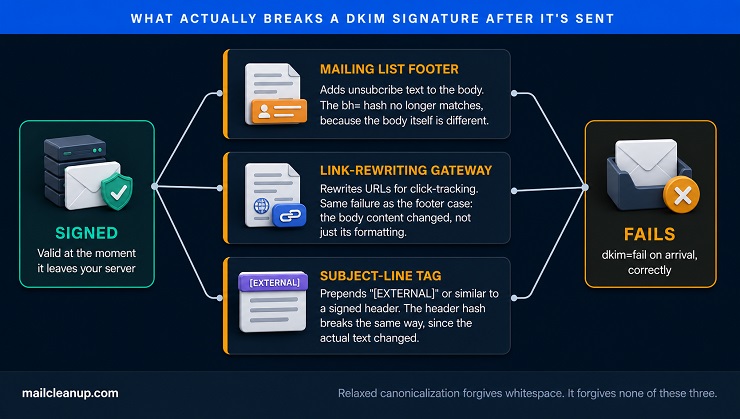
This is the real answer to the oversimplified claim this guide opened with. DKIM surviving forwarding is true only for forwarding that doesn’t touch signed content: plain relaying between mail servers. The moment a mailing list, a compliance footer, a link-rewriting gateway, or a subject-line tag gets involved, the signature is evaluating a different message. It’s no longer the one it was computed against. It fails, correctly, because that’s exactly what it’s designed to catch.
There is a real fix for the specific case of legitimate forwarding: ARC, the Authenticated Received Chain defined in RFC 8617. It lets an intermediate server that modifies a message attach its own chain of custody. A final receiver can then see the original DKIM signature was valid at the point it left the original sender. That holds even though the signature no longer validates directly. Gmail and Microsoft both support ARC. It isn’t something you configure on your own domain. It’s something the intermediate forwarding service or mailing list has to implement on theirs.
Common DKIM Record Failure Messages and What They Mean
Every DKIM outcome gets recorded in a message’s Authentication-Results header, and reading that header correctly is faster than guessing from symptoms. Six results are possible, and each points to a genuinely different kind of problem.
| Result | What It Means | Where to Look |
|---|---|---|
| dkim=pass | Signature verified successfully | Nothing to fix |
| dkim=none | No DKIM signature present at all | Signing isn’t enabled for this sender |
| dkim=fail | A signature exists but didn’t verify | Content changed after signing, most often forwarding, footers, or link rewriting |
| dkim=neutral | A signature exists but can’t be treated as authoritative | Check the specific reason shown, often bad record format or no key found |
| dkim=temperror | A temporary lookup problem, usually DNS | Check DNS availability and propagation, then retest |
| dkim=permerror | An unrecoverable problem with the record or signature | Check DNS record syntax and signature formatting directly |
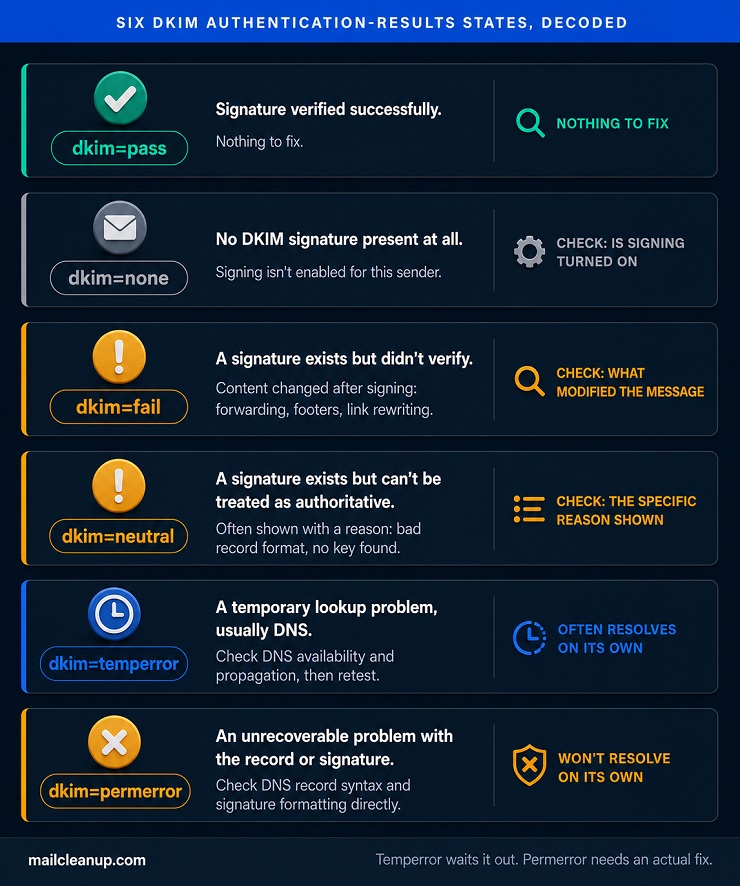
The distinction between temperror and permerror is worth internalizing on its own, since it changes what you actually do next. Temperror means the receiver hit a transient DNS condition, and a later attempt against the same, unchanged record can simply resolve on its own. Permerror means the receiver found something structurally wrong: an invalid record, a missing key, malformed signature syntax. It will keep failing every time until you actually correct it. Treating a permerror as something that might clear up on its own just delays a fix that has to happen regardless.
One specific failure worth flagging on its own: a signature can expire. The x= tag sets exactly how long a signature stays valid. If a receiving server checks it after that window closes, verification fails even though nothing was ever tampered with. Most senders use a window around seven days. Setting x= too short is a self-inflicted version of the same failure a mailing list causes by accident.
A DKIM failure on its own doesn’t sink a single message, but a pattern of them adds up. Recipients and their filters watch authentication trends over time, not just individual messages. Repeated failures erode the same sender reputation that authentication is supposed to protect. If DKIM is only one piece of a broader delivery problem, our guide to diagnosing delivery failure can help. It walks through the other failure modes worth ruling out alongside it.
5. Rotate: Retiring One DKIM Record Safely for the Next
Ask what is DKIM good for over the long term, and part of the honest answer involves how a key ages. A key doesn’t fail the way a password does, quietly and all at once when someone finally guesses it. It weakens gradually. The same computational advances that push the recommended size from 1024-bit toward 2048-bit keep advancing after you’ve generated a key too. Treating a key pair as permanent is the same mistake as treating any other credential as permanent. Retiring and replacing it on a schedule matters more than reacting only once something goes wrong.
Six to twelve months is the range senders and RFC-adjacent guidance converge on for routine rotation. Rotate sooner if a key’s exposure is ever in question. RFC 6376 itself describes the safe process directly, and it maps onto a straightforward sequence:
- Generate a new key pair under a brand-new selector name; never reuse the old selector for a new key.
- Publish the new selector’s public key in DNS, alongside the old one, not in place of it.
- Wait for DNS propagation to fully complete before changing anything else.
- Switch your signing configuration to the new selector, so new outgoing mail signs with the new key.
- Leave the old selector’s record live for a reasonable transition window, since mail already in transit may still need it to verify.
- Remove the old selector’s record only after that window closes.
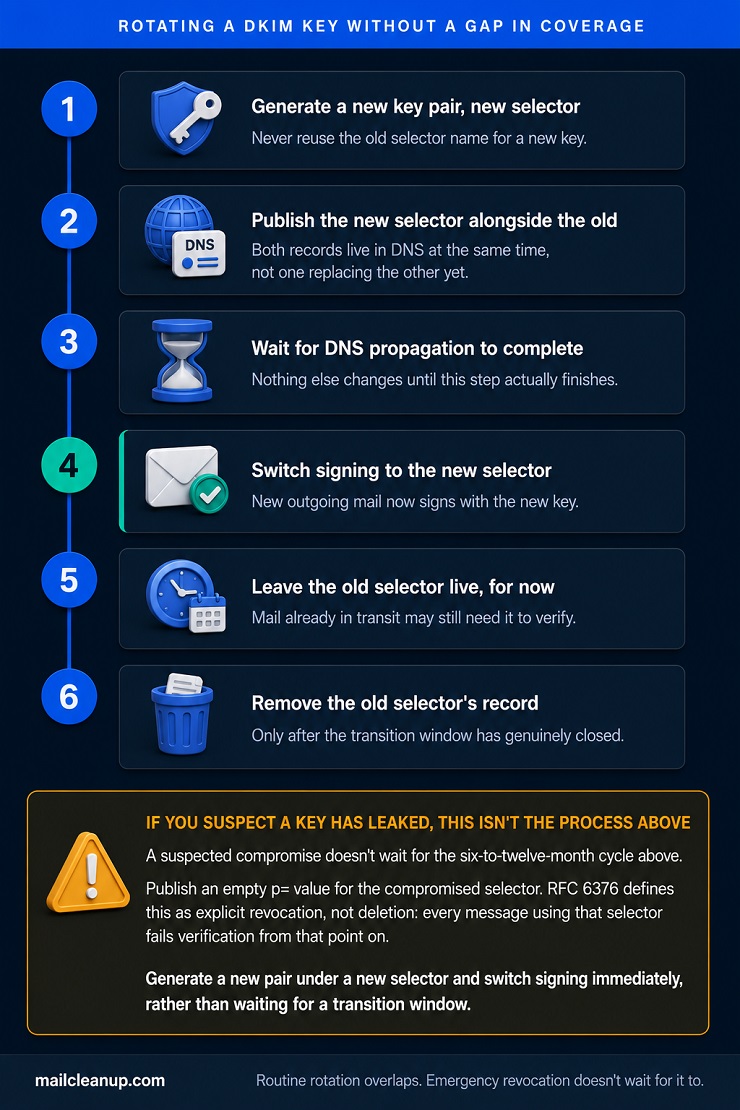
Reusing an old selector name for a new key, rather than assigning a fresh one, is specifically discouraged. It becomes impossible to tell whether a later failure means the key rotated or the message was actually forged. Microsoft 365’s own two-selector setup, covered under Publish, runs exactly this process automatically. That’s worth remembering if you ever wonder why it insists on two CNAME records instead of one.
Routine rotation on a schedule is one thing. A suspected key compromise is another, and it doesn’t wait for your usual six-to-twelve-month cycle. RFC 6376 defines an explicit revocation mechanism for exactly this. Publishing an empty value for the p= tag in a selector’s DNS record marks that specific key as revoked, not simply removed. Any receiver seeing it knows every message using that selector should fail verification from that point forward.
Revoking is different from quietly deleting the record. A deleted selector might just look like a DNS problem. A revoked one is an explicit statement that the key itself is no longer trusted. If you suspect a key has leaked, generate a new pair under a new selector, then switch signing to it right away. Revoke the compromised selector rather than waiting for the normal transition window.
Confirm Your DKIM Record Is Actually Working
A one-off test answers what is DKIM doing for one message, right now, from one source. It doesn’t confirm every platform sending on your behalf is signing correctly: your main mailbox provider, a marketing tool, a transactional API. It also won’t catch a forwarding quirk somewhere quietly failing DKIM for a slice of your mail that a single test would never surface.
That fuller picture lives in your DMARC aggregate reports. They show every source claiming to send as your domain and whether DKIM passed, over time rather than in a single snapshot. Our guide to reading DMARC reports walks through exactly what to look for in that data. It shows how to tell a genuine DKIM problem apart from a source you didn’t even know was sending.
DKIM is one piece of a bigger authentication picture. Our full guide to email authentication covers how DKIM, SPF, DMARC, and BIMI fit together. Our dedicated BIMI guide rounds it out with what a passing DMARC record actually unlocks for your brand’s visual presence in the inbox. Get DKIM right and check it against real reports instead of a single test. Then it stops being something you configured once and quietly worry about.
FAQs on DKIM Records
What does DKIM stand for?
DKIM stands for DomainKeys Identified Mail, an email authentication method that adds a cryptographic signature to outgoing messages. DKIM explained at its simplest: the signature lets a receiving server confirm a message came from the claimed domain and wasn’t altered. It became RFC 6376 in 2011.
How does DKIM actually work?
This is how DKIM works – your mail server computes a hash, encrypts it with a private key, and attaches the result as a DKIM-Signature header before sending. The receiving server looks up your public key in DNS using the named selector, recomputes the hash, and compares the two.
What is a DKIM selector?
A selector is a short label that lets one domain publish more than one DKIM record at once. Each sits under its own DNS name, in the format selector._domainkey.yourdomain.com. Selectors make it possible to run separate keys for different sending platforms. They also let you rotate to a new key by publishing it under a fresh selector, rather than overwriting the old one.
What’s the difference between DKIM and SPF?
What is DKIM next to SPF? Two different checks. SPF verifies whether the sending server is authorized for that domain, based on IP address. DKIM verifies whether the message’s headers and body arrived unchanged, using a cryptographic signature instead of a server list. DMARC decides what happens when either fails.
Do I need DMARC if I already have DKIM?
Yes. Even a fully correct DKIM implementation only confirms a message wasn’t altered in transit. It doesn’t tell a receiving server what to do about messages that fail. Nor does it stop someone from spoofing your visible From address without signing at all. DMARC adds that missing policy and reporting layer.
Can a domain have more than one DKIM record?
Yes, as long as each DKIM record uses a different selector. Selectors subdivide the DNS namespace, so selector1._domainkey.yourdomain.com and selector2._domainkey.yourdomain.com can both exist without conflicting. This is exactly how sending through more than one platform, or rotating keys safely, actually works.
Is DKIM mandatory for sending email?
Not by the original specification, which sets no absolute requirement, but effectively yes for any DKIM implementation reaching major inboxes. Google and Yahoo’s bulk sender rules require it for anyone sending more than 5,000 messages a day. Skipping it risks spam folder placement even where it isn’t strictly enforced.
Why does DKIM still fail after I’ve set it up correctly?
Usually because something changed the message after it was signed, not because the setup is wrong. Mailing lists that add footers, security gateways that rewrite links, and systems that tag subject lines can all invalidate that hash. Each one changes content your server already signed. Knowing how to check DKIM record status in the Authentication-Results header shows the exact reason.