
Your campaign left the send queue. The dashboard shows it as sent. But replies have not come in, open rates have collapsed, or a subscriber has messaged to say your email never arrived.
When emails are not delivered, the most frustrating part is not the lost reach. It is not knowing which of several completely different problems you are dealing with. Authentication failure looks identical to reputation damage on the surface. A list quality problem produces the same symptoms as a spam filter block. Without a clear diagnostic approach, most senders apply generic fixes that do not match their actual failure mode and lose time in the process.
This guide covers the four failure modes behind why emails are not delivered, how to identify which one you are in from the signals you can already see, and what to do for each one.
TL;DR on Email Delivery Failure
- When emails are not delivered, the cause always falls into one of four failure modes: authentication errors, list quality problems, sender reputation damage, or spam filter rejection.
- Authentication failure is the most common new cause since Google and Yahoo introduced mandatory bulk sender requirements in February 2024.
- List quality problems cause hard bounces that damage your sender reputation and lead to wider blocking if left unaddressed.
- Sender reputation damage is often a silent failure: no bounce notification arrives, but inbox placement collapses.
- Spam filter rejection can also be silent, with the email counted as delivered but routed to spam or discarded.
- The fastest diagnostic starting point is whether you received a bounce notification: if yes, start with authentication and list quality; if no, start with reputation and spam filtering.
- Every failure mode has a distinct signal, a distinct root cause, and a distinct fix path.
- Running MailCleanup on your list before every major send removes the list quality failure mode from the equation entirely.
What “Not Delivered” Actually Means
Before diagnosing the cause, it is worth being precise about what email non delivery actually covers. The term describes two technically different failure states, and conflating them leads to applying the wrong fix.
Email delivery is the technical transfer of a message from your sending server to the recipient’s mail server. Email deliverability is whether that message reaches the inbox once the server accepts it. An email can fail at either stage, and why emails are not delivered in each case requires a completely different investigation.
A dedicated post explains more about email deliverability, how it is different from email delivery and the factors that influence your email deliverability.
The Difference Between a Delivery Failure and a Deliverability Failure
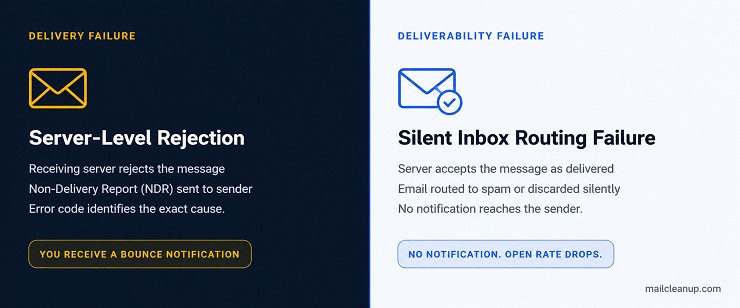
A delivery failure happens at the server level. The receiving server rejects the message and sends a Non-Delivery Report (NDR) back to you with an error code and a stated reason. You know immediately that something went wrong.
A deliverability failure is different. The receiving server accepts the message, passes it to its filtering layer, and the filtering layer routes it to spam or discards it entirely. Your ESP dashboard logs it as delivered. No NDR arrives. Your open rate drops and you have no bounce report to explain why.
Both failures result in why email is not delivered to the reader. The signal they produce is the key to knowing which failure mode you are in.
Why Some Email Delivery Failures Are Completely Silent
The silent failure category is the one most senders underestimate. Greylisting, spam folder placement, Gmail tab routing, and ISP-level content filtering all produce zero notification. Emails not being delivered through these mechanisms look, from the sender’s side, like successful sends.
This is why checking your bounce logs alone is never enough to fully diagnose an email delivery failure. If your bounce rate is clean but your open rate is in decline, the problem is happening after the server accepts the message, not before.
The 4 Delivery Failure Signals
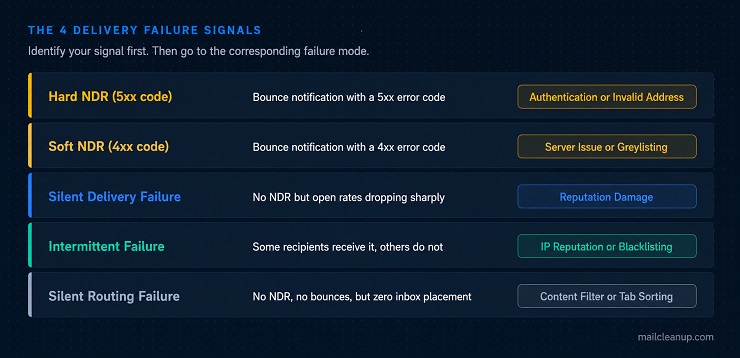
The fastest way to identify why emails are not delivered is to look at what you are actually observing. The table below maps the five most common observable signals to the failure mode they indicate. Identify your signal first, then go to the corresponding failure mode section.
| What You Are Seeing | Signal Type | Failure Mode to Investigate |
|---|---|---|
| Bounce notification with a 5xx error code | Hard NDR | Authentication failure or invalid address |
| Bounce notification with a 4xx error code | Soft NDR | Server issue, full mailbox, or greylisting |
| No NDR but open rates dropping sharply | Silent deliverability failure | Reputation damage or spam filter rejection |
| Some recipients receive the email, others do not | Intermittent failure | IP reputation damage, throttling, or blacklisting |
| No NDR, no bounces, but inbox placement is near zero | Silent routing failure | Content-triggered spam filter or tab sorting |
Failure Mode 1: Authentication Errors
Signal: Hard bounce with a 5xx error code, or sudden delivery failure across a large share of your list
Why emails are not delivered due to authentication errors is now the most common new cause of email delivery failure among bulk senders. Since February 2024, Google and Yahoo have enforced mandatory sender authentication requirements. Senders who had been delivering without issues for years began experiencing widespread bounces and blocks, not because anything changed about their content or list, but because their authentication configuration no longer met the updated threshold.
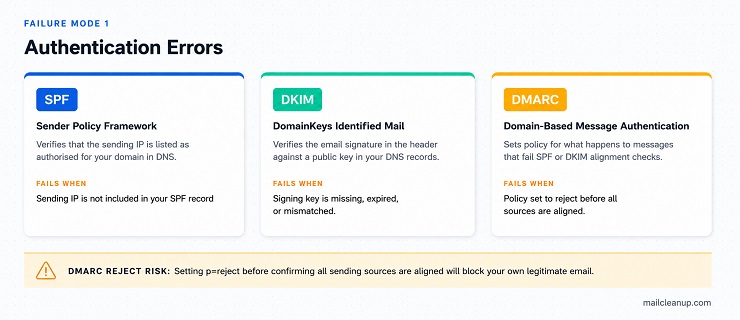
The three protocols involved are SPF (Sender Policy Framework), DKIM (DomainKeys Identified Mail), and DMARC (Domain-based Message Authentication, Reporting and Conformance). Each one acts as an identity verification layer that tells the receiving server your message is genuinely coming from your domain.
SPF and DKIM: The Two Non-Negotiables Since February 2024
SPF works by publishing a list of IP addresses authorised to send email on behalf of your domain. When a receiving server gets your message, it checks whether the sending IP is on that list. If it is not, SPF authentication fails.
DKIM works differently. It embeds a cryptographic signature in the email header. The receiving server checks that signature against a public key published in your DNS records. If the key is missing or the signature does not match, DKIM authentication fails.
Google and Yahoo now require bulk senders to pass SPF or DKIM on every message. Senders dispatching more than 5,000 emails per day to Gmail addresses must pass both. If either record is missing, misconfigured, or out of date because you moved to a new ESP without updating your SPF record, emails are rejected at the server level before they reach the inbox.
The NDR code to look for is a 550-series error. Common variants are 550 5.7.1 (message rejected due to policy) and 550 5.7.26 (authentication failed). Either of these in your bounce report means authentication is your starting point.
DMARC Reject Policy: When Your Own Configuration Blocks Your Email
DMARC adds a policy layer on top of SPF and DKIM. It tells receiving servers what to do with messages that fail authentication. The three policy settings are: none (monitor only), quarantine (send to spam), and reject (block entirely).
A specific email delivery failure mode affects senders who have set DMARC to the reject policy before confirming that all their sending sources are properly aligned. If your company sends from a marketing platform, a CRM, and a transactional system, all three must be covered by your SPF record and DKIM-signed before you escalate to p=reject. Any sending source not included will have its messages blocked by your own policy.
The correct sequence is to start at p=none, monitor DMARC aggregate reports for 30 to 60 days, confirm all sending sources are aligned, move to p=quarantine, then escalate to p=reject only after confirming no legitimate sources are being affected.
How to fix authentication errors:
- Use MxToolbox to run a free check on your SPF, DKIM, and DMARC records. It flags missing or misconfigured entries directly.
- Verify that every platform you send from is listed as an authorised sender in your SPF record.
- If you moved to a new ESP recently, confirm that DKIM records have been generated and published for your sending domain in the new platform.
- If your DMARC policy is set to reject and you are seeing authentication failures, temporarily move to p=quarantine while you identify the unaligned sending source.
For the complete setup walkthrough covering all three protocols, see our post on email authentication.
Failure Mode 2: List Quality Problems
Signal: Rising hard bounce rate after a send, or a high volume of unknown user errors in your ESP bounce report
Why emails are not delivered due to list quality problems is one of the most preventable forms of email delivery failure. It happens when your list contains addresses that no longer exist, were never valid, or belong to mailboxes that have been abandoned.
When you send to an invalid address, the receiving server has no mailbox to deliver to and returns a hard bounce. A small number of hard bounces is normal. When the rate climbs above 2%, ISPs begin treating your sending domain and IP as a source of low-quality mail. Above 5%, active blocking typically begins.
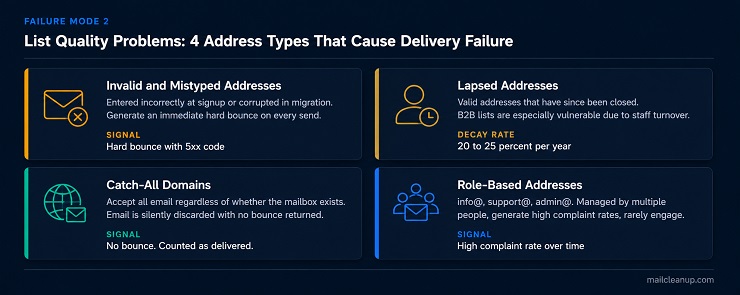
There are four main list quality problems that produce this failure mode:
- Invalid or mistyped addresses: Entered incorrectly at signup or corrupted in a data migration. These generate immediate hard bounces on every send.
- Lapsed addresses: Valid addresses that have since been deactivated. An address that was real 18 months ago may no longer exist, particularly in B2B lists where staff turnover is common. Email lists decay at roughly 22 to 30 percent per year.
- Catch-all domains: Domains configured to accept any message regardless of whether the specific mailbox exists. Your send is logged as delivered, but the email is silently discarded at the domain level. These do not generate hard bounces, which makes them harder to detect.
- Role-based addresses: Addresses like info@, support@, or admin@. These are managed by multiple people or automated systems, produce high complaint rates, and rarely generate genuine engagement.
The compounding problem with email delivery failure from list quality is that hard bounces damage your sender reputation, which then causes future emails to be filtered or blocked even for valid addresses on the same list. A list quality problem that is not resolved quickly escalates into a reputation failure that affects your entire sending programme.
How to fix list quality problems:
- Remove all hard bounce addresses from your list immediately after every campaign. Do not wait for the next send cycle.
- Suppress role-based addresses and catch-all domains before campaigns go out.
- If your list has been idle for more than 90 days, verify it before sending. Address validity degrades continuously and a list that was clean a year ago is likely carrying a meaningful number of invalid entries.
- Use MailCleanup to verify your list before sending. It identifies and removes invalid, catch-all, and risky addresses before they reach your sending queue, removing list quality failure from the equation before it starts.
For a full explanation of what causes hard and soft bounces at the technical level, see our post on What Causes Email Bounces. For step-by-step instructions on running a cleaning pass on an existing list, see our detailed guide on How to Clean an Email List.
Failure Mode 3: Sender Reputation Damage
Signal: No NDR but open rates dropping or inbox placement collapsing across campaigns
This is one of the most common reasons why emails are not delivered without any warning. No bounce notification arrives. No error code appears. Campaigns go out, the dashboard confirms delivery, but inbox placement is declining steadily or has collapsed entirely.
Sender reputation is a score maintained by ISPs for every sending domain and IP address. It reflects your historical sending behaviour: how many of your emails bounce, how many recipients mark them as spam, how frequently you send, and how consistently your recipients engage. When your reputation falls below a threshold, ISPs route your mail to spam or block it entirely.
There are two distinct reputation layers that affect email delivery failure: IP reputation and domain reputation. Understanding which one is damaged determines what you can actually do to fix it.
IP Reputation vs Domain Reputation: Which One to Fix First
IP reputation is the score assigned to the specific IP address you are sending from. If you send from a dedicated IP, your reputation is entirely your own. If you send from a shared IP pool managed by your ESP, your reputation is also influenced by the behaviour of every other sender on that pool.
Domain reputation is the score assigned to your sending domain itself. Unlike an IP address, a domain is exclusively yours. Your sending practices, engagement rates, and complaint history all feed directly into how ISPs score it. Since Google and Yahoo elevated domain reputation as a primary deliverability signal in 2024, domain reputation is now the more critical of the two layers for most senders.
The fix path differs depending on which layer is affected:
- If your IP is blacklisted and you send from a shared pool, contact your ESP directly. You cannot resolve a shared IP blacklisting yourself. Your ESP must address the issue or move you to a clean IP.
- If your IP is blacklisted and you send from a dedicated IP, run a blacklist check, identify the specific listings, and follow the delisting request process for each one. See our post on Email Blacklist Check and Removal for the full delisting guide.
- If your domain reputation is the issue, the fix is behavioural and takes time. Suppressing non-engagers, temporarily reducing send volume, and removing the underlying cause of the reputation damage are the required steps. See our guide on Email Sender Reputation for the full recovery framework.
How Spam Complaint Rate Silently Destroys Deliverability
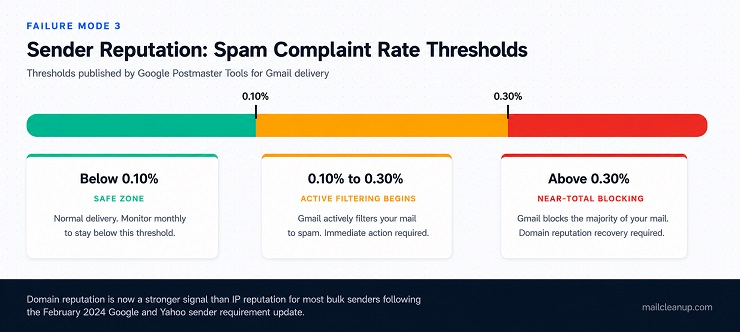
Spam complaint rate is the ratio of recipients who mark your email as spam relative to total emails delivered. It is one of the most heavily weighted signals ISPs use to assess domain reputation, and one of the most commonly ignored causes of why emails are not delivered.
Google Postmaster Tools publishes the thresholds it applies to incoming mail. A complaint rate above 0.10% triggers active filtering across Gmail. A complaint rate above 0.30% results in near-total blocking. Most senders are not monitoring this metric until they are already above the threshold.
The mechanism is straightforward. When a recipient clicks “Report Spam,” the ISP logs a complaint against your sending domain. It does not matter whether the recipient consented to receive your email. It does not matter whether your content is legitimate. The complaint is recorded, and repeated complaints lower your domain’s reputation score with every ISP that tracks them.
The three most common causes of high complaint rates are:
- Sending to an unengaged segment that has stopped opening and has no clear way to unsubscribe
- A missing, broken, or deliberately obscured unsubscribe link
- A mismatch between what the subscriber signed up for and what they are now receiving
How to fix sender reputation damage:
- Check your sending domain and IP against public blacklists using a tool such as MxToolbox Blacklist Check.
- Set up Google Postmaster Tools for your sending domain and review your domain reputation score and complaint rate weekly.
- Register for ISP feedback loops where available. Feedback loops send you a notification each time a recipient marks your email as spam, allowing you to suppress them immediately.
- If your complaint rate is above 0.10%, pause high-volume sends to unengaged segments while you identify the root cause and clean the affected segment.
Failure Mode 4: Spam Filter and Content Rejection
Signal: No bounce notification, but inbox placement is near zero or open rates have collapsed despite a clean bounce log
When emails are not delivered to the inbox despite no authentication failures and a clean bounce log, spam filter rejection is the failure mode to investigate. This is the category where why emails don’t get delivered has nothing to do with technical configuration or list validity. The addresses are real, authentication is passing, but the ISP’s filtering layer is deciding your email does not belong in the inbox.
Spam filters operate on multiple signal types simultaneously. Content signals, engagement signals, and sending pattern signals all feed into the filter’s decision. No single trigger is likely to cause inbox failure on its own. It is usually a combination that tips the balance.
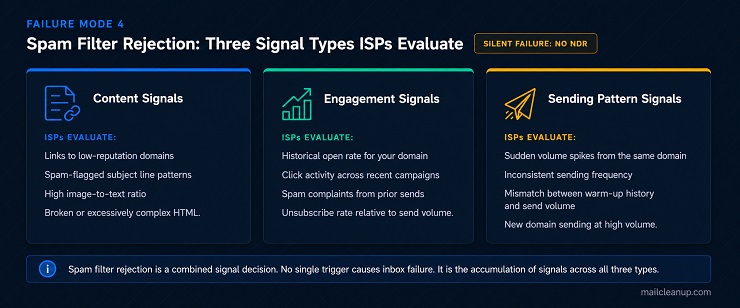
The content signals that carry the most weight in modern spam filters include links to domains with poor reputations, subject lines using heavily flagged language patterns, high image-to-text ratios, and HTML that is broken or excessively complex. Equally important are engagement signals. If your domain has a history of low open rates and minimal click activity, ISPs use that engagement record as a filter signal for new messages from the same sender, regardless of content quality.
There is also a tab routing issue specific to Gmail worth understanding clearly. Gmail’s Promotions tab is not the spam folder, but emails routed there see significantly lower open rates. Over time, a pattern of low engagement from tab-routed emails can affect the engagement signals ISPs use to score your domain.
Gmail uses machine learning to classify messages by sender behaviour, content patterns, and structured markup. Sending to your most engaged subscribers first, using consistent sender names and domains, and encouraging replies from subscribers who want your content are the most reliable ways to influence this classification over time.
How to fix spam filter and content rejection:
- Run your email through a spam filter testing tool such as Mail-Tester before sending. It scores your content against the most widely used filters and flags specific triggers so you can address them before the campaign goes out.
- Check all URLs in your email against domain reputation tools. A single link to a domain with a poor reputation can flag an otherwise clean message at the filter level.
- Segment your list by engagement level before sending. Send to your most active subscribers first. The positive engagement signals from that group improve inbox placement for the broader send that follows.
- If open rates have been declining across multiple campaigns, run a re-engagement campaign before your next major send rather than mailing the full list. Suppressing non-engagers protects your domain’s engagement signals with ISPs and reduces the risk of complaint-driven filtering.
For the full set of practices that protect inbox placement across all four failure modes, see our post on Ways to Improve Email Deliverability.
How to Diagnose an Email Delivery Failure in 5 Minutes
If you have a live problem right now and need to identify which failure mode you are in, run through these five checks in order. Each one narrows the diagnosis. Why emails are not delivered is identifiable within these steps in almost every case, without specialist tools or external support.
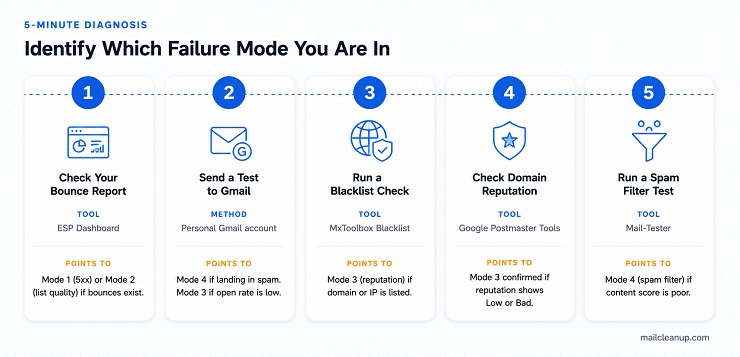
- Check your bounce report in your ESP dashboard: Hard bounces with 5xx codes point to Failure Mode 1 (authentication) or Failure Mode 2 (list quality). Soft bounces with 4xx codes suggest a temporary issue: server congestion, greylisting, or a full recipient mailbox. No bounces at all means the problem is happening after the server accepts the message. Move to step 2.
- Send a test email to a personal Gmail address: Inbox placement means delivery is working at least for Gmail. Promotions tab placement means Gmail is classifying your mail as promotional rather than blocking it. Spam folder placement means an active reputation or content issue is in play. Move to step 3 to narrow it down.
- Check your sending domain against public blacklists: Use MxToolbox Blacklist Check. If your domain appears on one or more lists, sender reputation damage is your failure mode. Go to Failure Mode 3. If you are not blacklisted, move to step 4.
- Check your domain reputation in Google Postmaster Tools: A Low or Bad reputation rating confirms reputation damage as your failure mode even without a blacklist listing. A Medium or High rating means reputation is not the primary issue. Move to step 5.
- Run your email content through a spam filter test: Use Mail-Tester or an equivalent tool. A poor spam score confirms content or engagement-based filtering as your failure mode. Go to Failure Mode 4. If your spam score is clean and all previous steps returned no issues, the most likely cause is a combination of low engagement signals and Promotions tab routing rather than an active block.
How to Prevent Email Delivery Failures Before They Start
The four failure modes covered in this guide all have one thing in common: each one is easier to prevent than to recover from. Identifying why emails are not delivered after a campaign has gone out means the damage is already done. Authentication failures have already generated NDRs, list quality problems have already added hard bounces to your sender reputation, and reputation damage has already influenced how ISPs score your domain for future sends.
Four practices, applied consistently, eliminate the majority of email delivery failure before it starts.
- Audit your authentication records every time your sending infrastructure changes – SPF records go stale when you switch ESPs, add a new marketing platform, or move to a new sending domain. DKIM keys can expire or be misconfigured during migrations. A record that was correct six months ago may not cover your current sending sources. Run a check on your SPF, DKIM, and DMARC records at MxToolbox after every infrastructure change, not only when a problem appears.
- Verify your list before every major send, especially after any period of inactivity – Lists that have been idle for 90 days or more accumulate invalid addresses at a rate that produces damaging bounce rates on the next send. MailCleanup removes invalid, catch-all, and risky addresses before they reach your sending queue, so list quality failure is removed from the equation before a campaign goes out. Running a verification pass before every large send is the single highest-return preventive action available to bulk senders.
- Monitor your sender reputation and spam complaint rate monthly, not only when something goes wrong – Google Postmaster Tools provides domain reputation scoring and complaint rate data for Gmail, which represents a significant share of most senders’ lists. A complaint rate edging toward 0.10% is a warning signal that needs attention before it crosses the threshold that triggers active filtering.
- Warm up new IPs and new domains before sending at full volume – Sending high volumes from a cold IP or a brand-new domain is one of the fastest ways to accumulate reputation damage. ISPs treat high volume from an unknown sender as a spam signal. Follow a gradual ramp schedule, start with your most engaged subscribers, and let positive engagement signals build your reputation before expanding the send. See our guide on Email Warmup for a week-by-week schedule.
Every Email Delivery Failure Has a Signal. The Fix Starts With Finding It.
Most senders dealing with an email delivery failure jump straight to fixes without first identifying which failure mode they are actually in. They update their SPF record when the problem is a content filter. They audit their content when the problem is a blacklisted IP. They clean their list when authentication is what broke. The diagnostic framework in this guide exists to prevent that cycle.
Why emails are not delivered is never a single universal answer. It is one of four clearly distinguishable failure modes, each with a distinct signal, a distinct root cause, and a distinct resolution path. The signal is always visible before you need specialist tools: a hard bounce code, a soft bounce code, a collapsing open rate with no bounce explanation, or near-zero inbox placement from a clean send. Each one points to a specific starting point.
The failure modes that are hardest to recover from are the ones that compound. List quality problems become reputation damage. Reputation damage becomes domain-level blocking. Domain-level blocking takes weeks or months to recover from even after the root cause is resolved. The senders who avoid that cycle are the ones who monitor their authentication records, verify their list before sending, check their reputation score regularly, and treat delivery health as an ongoing practice rather than something they investigate only when something breaks.
FAQs on Email Delivery Failure
Why are my emails not being delivered even though they show as sent in my ESP?
“Sent” confirms the email left your server, not that it reached the inbox. Why emails are not delivered after a successful send is almost always a spam filter routing issue or a reputation-based deliverability failure at the ISP level. Send a test message to a personal Gmail address to confirm where the email is actually landing before investigating further.
What is the most common cause of email delivery failure in 2026?
Authentication misconfiguration is currently the most common cause of email delivery failure among bulk senders. Since Google and Yahoo introduced mandatory SPF, DKIM, and DMARC requirements in February 2024, senders without correctly configured authentication records are being rejected at the server level before their emails reach any inbox.
How do I know if my email ended up in spam instead of being delivered?
Send a test email to a personal Gmail account and check which folder it lands in. If it arrives in the spam folder, your sending domain has a reputation or content issue. For emails not being delivered to the inbox across multiple providers, use an inbox placement testing tool to check results across major ISPs at the same time.
Can a dirty email list cause emails not to be delivered?
Yes. Sending to invalid addresses generates hard bounces that damage your sender reputation with ISPs. When your reputation falls below their threshold, why email is not delivered extends beyond the invalid addresses to valid subscribers on the same list. Cleaning your list before each send is the most direct way to prevent this escalation.
What does a 550 error mean when emails are not delivered?
A 550 error is a permanent rejection issued by the receiving server. Why emails are not delivered with this code is typically one of three reasons: the recipient address does not exist, your sending domain or IP is blacklisted, or your message failed an authentication policy. The SMTP error codes guide covers every 5xx variant and the action each requires.
Why do some recipients receive my emails but others do not?
Intermittent delivery where some recipients receive the email and others do not is a symptom of IP reputation damage or ISP-specific blacklisting. Email non delivery in this pattern typically means your sending IP is listed on a blacklist that some receiving mail servers reference and others do not. Run a full blacklist check to identify any active listings.
How can I fix why email is not delivered to a specific domain?
Why email is not delivered to a specific domain usually means your sending IP or domain is listed on a blacklist that domain’s mail server references, or your authentication is failing their policy requirements. Run a blacklist check, verify your SPF and DKIM records are correctly configured, and review your DMARC policy setting before resending.
Does email list cleaning really help prevent email delivery failure?
Yes. Email list cleaning directly eliminates the list quality failure mode, which is one of the four causes of email delivery failure. Removing invalid, lapsed, and catch-all addresses reduces hard bounce rates, protects sender reputation, and prevents the escalation where list problems cascade into reputation damage that affects your entire sending programme.