
If you send more than 5,000 emails a day to Gmail or Yahoo inboxes, your emails are now being actively checked against a set of DNS-based authentication standards before they’re allowed anywhere near the inbox. Gmail and Yahoo made this mandatory in February 2024. Microsoft followed with its own enforcement in May 2025. This is not a future consideration anymore. It’s the current reality of bulk email sending.
And yet, a surprising number of senders still have incomplete or broken authentication setups. Some have SPF configured but nothing else. Some have all three protocols in place but have DMARC sitting permanently at p=none, which means it’s doing absolutely nothing to protect their domain. Some are using multiple ESPs and have no idea their SPF record is failing the 10-lookup limit on every single send.
So what is email authentication, exactly? It’s the system of DNS-based protocols that lets receiving mail servers verify that an email claiming to come from your domain actually did. Without it, any server anywhere in the world can send an email that appears to come from your domain. Your customers can be phished using your brand name. Your domain reputation can be destroyed by someone else’s behaviour. And your legitimate emails get treated with the same suspicion as the fakes.
This guide covers every layer of email authentication in the depth it deserves. SPF, DKIM, DMARC, BIMI, and ARC are all here, along with ISP-specific setup guidance for Gmail, Outlook, and Yahoo, a full troubleshooting section for when authentication fails, and a clear explanation of how authentication failures show up in your bounce reports. If you’ve been meaning to get your authentication in order, this is the guide to work through.
For the broader picture of how authentication fits into your deliverability and bounce management system, our email bounce management guide covers the operational side in full. And if you want to understand why authentication failures cause bounces in the first place, what causes email bounces has the full breakdown by category.
TL;DR – Email Authentication: What You Need to Know
- Email authentication is the DNS-based system that proves your emails genuinely came from your domain, and without it, ISPs including Gmail, Yahoo, and Microsoft will filter or reject your messages.
- SPF (Sender Policy Framework) authorises which IP addresses can send email on behalf of your domain, but it breaks on forwarding and has a hard 10-DNS-lookup limit that catches out most senders using multiple ESPs.
- DKIM (DomainKeys Identified Mail) adds a cryptographic signature to every outgoing message that receiving servers use to verify the content has not been altered in transit.
- DMARC (Domain-based Message Authentication, Reporting, and Conformance) ties SPF and DKIM together, enforces a policy for failures, and sends detailed reports back to the domain owner.
- Gmail and Yahoo made SPF, DKIM, and DMARC mandatory for bulk senders in February 2024. Microsoft enforced the same requirement in May 2025.
- BIMI (Brand Indicators for Message Identification) is the optional fourth layer, displaying your verified logo in supporting inboxes once DMARC enforcement is in place.
- Authentication failures show up in bounce reports as SMTP codes 550 5.7.1, 550 5.7.26, and 554 5.7.9. List cleaning does not fix them. Infrastructure fixes do.
What Is Email Authentication & Why Does It Matter Now
Email authentication is the process of verifying that an email claiming to come from your domain actually did. It sounds simple. The reason it took decades to become a mandatory standard is that the original email protocol, SMTP, was designed in a more trusting era. Sender identity was never built into it. Any server could send any email claiming to be from any address, and the receiving server had no standardised way to check.
That design gap is the root cause of most email-based fraud. And the email authentication methods that exist today, SPF, DKIM, DMARC and their successors, are the industry’s answer to closing it.
The Problem Email Authentication Solves
Here is what happens without email authentication in place. A scammer sets up a mail server and sends a phishing email that appears to come from yourcompany.com. The email lands in your customer’s inbox, looks completely legitimate, and asks them to click a link or provide credentials. Your customer gets defrauded. Your domain gets flagged as a phishing source. Your legitimate emails start getting filtered. And you had nothing to do with any of it.
This is not a hypothetical. Business email compromise (BEC) attacks, which rely heavily on domain spoofing, cost organisations billions of dollars annually. The attack surface exists specifically because email was not designed with sender verification in mind.
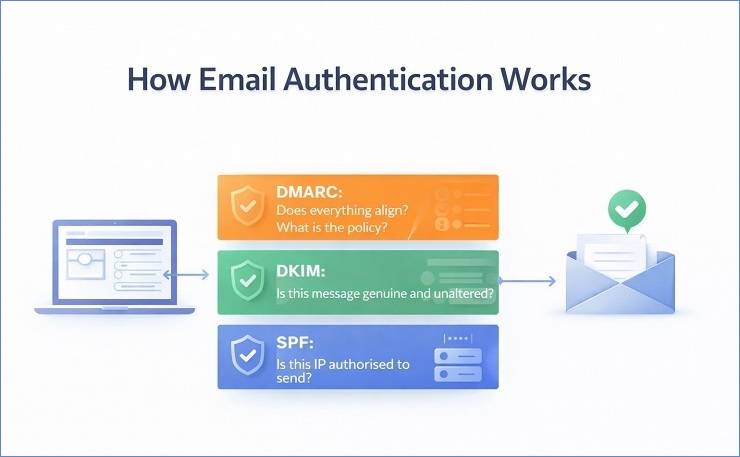
Email authentication protocols fix this by publishing verifiable information about your sending infrastructure in your DNS records. When a receiving server gets an email claiming to be from yourcompany.com, it checks those DNS records and either confirms that the email is legitimate or identifies it as suspicious. The check happens automatically, at the server level, before the message ever reaches a human inbox.
The three core email authentication methods each cover a different part of this verification process. SPF checks whether the sending IP is authorised. DKIM checks whether the message content is genuine and unaltered. DMARC ties the two together and enforces a policy when either check fails. Together, they create a verification chain that is very difficult to fake without access to the domain owner’s DNS records and private keys.
The 2024 to 2025 Mandate: What Changed & What the Consequences Are Now
For most of the history of email authentication, the protocols existed but compliance was voluntary. ISPs would factor authentication results into their spam filtering decisions, but there was no hard enforcement. A sender without SPF or DKIM configured would lose some deliverability points but wouldn’t necessarily see their emails rejected outright.
That changed in February 2024, when Google and Yahoo simultaneously announced and implemented mandatory email authentication requirements for bulk senders. Microsoft followed in May 2025 with its own enforcement. Between the three of them, these providers cover the overwhelming majority of consumer and business email addresses.
Here is what each provider requires and what happens when you don’t comply:
| Provider | Bulk Sender Threshold | Requirement | Enforcement Since | Consequence for Non-Compliance |
|---|---|---|---|---|
| Gmail | 5,000 emails/day | SPF or DKIM (minimum); DMARC at p=none minimum | February 2024 | Rejection or spam filtering depending on violation |
| Yahoo | 5,000 emails/day | SPF and DKIM; DMARC at p=none minimum | February 2024 | Rejection or spam filtering |
| Microsoft 365 / Outlook | No published threshold | SPF, DKIM, and DMARC enforced | May 2025 | 550 5.7.515 rejection for non-compliant senders |
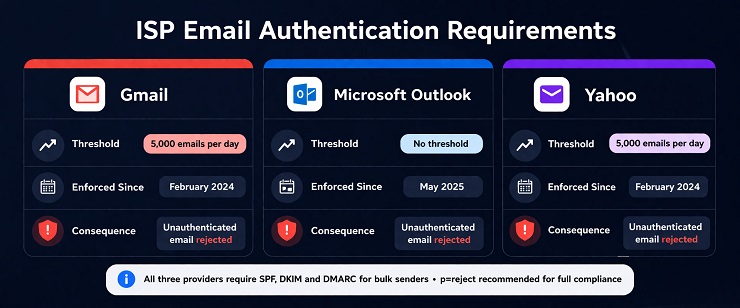
A few things are worth noting about this table. First, the 5,000 emails per day threshold for Gmail and Yahoo is a cumulative count across your entire sending domain, not per campaign. Once you hit 5,000 emails to Gmail or Yahoo addresses in a single day, you are permanently classified as a bulk sender for the purposes of these requirements. You don’t get reclassified if your volume drops.
Second, “minimum” compliance and genuine compliance are not the same thing. Having DMARC at p=none meets Google’s minimum requirement, but it provides zero protection and no enforcement. The target state for any serious sender is p=reject, and the rollout to get there is covered in full in the DMARC section of this guide.
Third, Microsoft’s enforcement is stricter in one meaningful way. Microsoft does not use a volume threshold. Any domain sending to Microsoft-hosted inboxes without proper authentication is subject to the 550 5.7.515 rejection code, regardless of send volume.
How Email Authentication Affects Bounce Rate and Deliverability
This is the connection that most email authentication guides miss entirely, so it’s worth making explicit here.
Authentication failures do not show up in your ESP dashboard as “authentication failures.” They show up as hard bounces. And if you don’t know what’s causing them, you might spend weeks cleaning your list looking for invalid addresses while the actual problem sits in your DNS records.
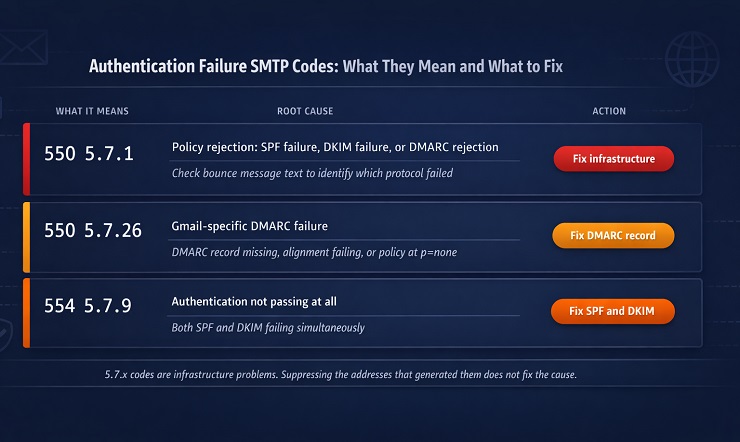
The SMTP codes that authentication failures generate are in the 5.7.x range. A 550 5.7.1 means your message was rejected by the receiving server’s policy, which could be an SPF failure, a DKIM failure, or a DMARC rejection. A 550 5.7.26 means specifically that your message failed DMARC authentication. A 554 5.7.9 means authentication wasn’t passing at all when the server checked.
The critical diagnostic distinction is this: 5.1.x SMTP codes point to list quality problems (invalid or non-existent addresses). 5.7.x SMTP codes point to infrastructure and authentication problems. Suppressing addresses that generated 5.7.x codes is the right thing to do for your bounce rate in the short term. But it doesn’t fix the underlying problem. Every send through the same broken infrastructure will generate the same codes on different addresses. Our SMTP error codes guide covers every authentication-related code and what it means in full detail, and for the relationship between authentication failures and sender reputation, the guide on email sender reputation covers how the two connect.
What is SPF: Sender Policy Framework
SPF is the first layer of email authentication. It’s a DNS record that lists which mail servers are authorized to send on your domain’s behalf, when a message arrives, the receiving server checks the sending IP against that list and either passes or fails the message accordingly.
Two things matter more than the syntax itself. Every SPF record is capped at 10 DNS lookups, and a record that exceeds it fails silently, with no obvious error to point to. And SPF breaks by design whenever a message is forwarded, since the check runs against whichever server sent it last, not your original one — which is exactly why DKIM exists alongside it. Neither is a one-time fix: the lookup ceiling gets closer every time a new sending tool is added to the stack.
Our complete guide to SPF covers the full mechanism, every mechanism and qualifier in the syntax, real record examples for common sending stacks, and a repeatable system for managing your lookup budget before it becomes a problem.
What is DKIM: DomainKeys Identified Mail
DKIM is the second core authentication protocol, and it solves a different problem than SPF. Instead of checking where a message came from, DKIM checks whether it was altered in transit i.e. a cryptographic signature, generated from a private key and verified against a public key in your DNS, travels with the message and breaks if anything covered by it changes.
The gotcha that trips up more senders than the mechanism itself: a signature can pass its own cryptographic check and still fail DMARC, if the domain it’s signed with doesn’t match your visible From address. This happens by default with most ESPs such as Mailchimp, for instance, signs with its own domain unless you specifically configure custom DKIM signing to sign with yours instead. Getting that alignment right, not just getting DKIM to “pass,” is what actually matters.
DKIM is also more resilient than SPF against forwarding, since the signature travels with the message rather than depending on which server sent it last, though it isn’t immune. A forwarder that modifies the message, the way a mailing list adding a footer does, breaks the signature anyway. That’s exactly the gap ARC, covered next, exists to close.
Our complete guide to DKIM covers the full signing lifecycle, every tag in the signature and DNS record, provider-specific setup for Google, Microsoft, and Yahoo, and how to rotate keys without a coverage gap.
What is DMARC: Domain-Based Message Authentication, Reporting, and Conformance
DMARC is the policy layer that sits on top of SPF and DKIM. Where those two each report a pass or fail on their own, DMARC decides what actually happens next. It requires that at least one of them both pass and align with your visible From domain, then applies whatever policy you’ve published (none, quarantine, or reject) and reports the outcome back to you.
That reporting channel is where most domains stall. Publishing a record at p=none satisfies the 2024–2025 bulk-sender mandates from Gmail, Yahoo, and Microsoft, but it enforces nothing. You get the data with none of the protection. Getting to p=reject safely means confirming every legitimate sending source is passing first, staging the change with RFC 9989’s t=y testing flag rather than jumping straight to full enforcement, and only removing it once you’re confident nothing legitimate gets caught.
RFC 9989 also added np= : a subdomain that never sends any mail at all is still spoofable without its own policy, and np=reject closes that off at effectively no cost.
Our complete guide to DMARC covers the full mechanism, record syntax, and the four-stage path to enforcement most domains never finish. Our guide to reading a DMARC report covers the aggregate and forensic formats field by field and a published record only helps once you’re actually reading what it tells you.
What is BIMI: Brand Indicators for Message Identification
BIMI is the fourth, optional layer and the only one your recipients actually see. Once DMARC is enforced (p=quarantine or p=reject, with SPF or DKIM aligning), a BIMI DNS record can display your verified brand logo directly in the inbox.
It isn’t a security protocol itself; it doesn’t stop phishing or authenticate content. It’s a visual trust signal that only a sender who’s already done the authentication work can unlock.
Getting the logo to actually display depends on more than the record. A certificate, a VMC backed by a registered trademark, or a lower-cost CMC without one is required by some providers and not others, and which one you hold determines whether Gmail’s checkmark appears alongside the logo at all.
Our complete guide to BIMI covers the full prerequisite chain, current certificate options, the DNS record itself, and the most common reasons a technically correct setup still doesn’t display.
What is ARC: Authenticated Received Chain
ARC (Authenticated Received Chain) is the protocol most senders never configure directly, and exists to solve one specific problem: a completely legitimate email can fail SPF and DKIM the moment it’s forwarded, or passed through a mailing list or security gateway, because the receiving server only sees the intermediate server’s IP and whatever changes that server made along the way. ARC lets each intermediate server record what the authentication results looked like before those changes, so the final receiver can recognise a message that was genuinely authenticated upstream even when a direct check now fails.
Where this matters for your own diagnostic work: if a specific segment of your list produces authentication failures that don’t trace back to any misconfiguration on your end, corporate forwarding or a security gateway further down the chain is worth checking before assuming the problem is yours. [our dedicated ARC guide] covers the full header mechanism and how it interacts with DMARC.
How to Set Up Email Authentication: ISP-Specific Guidance
Setting up email authentication correctly means configuring three separate DNS records, and the exact steps vary depending on your primary email platform. The principles are the same across all of them. SPF authorises your sending sources, DKIM signs your messages, and DMARC enforces and reports. But the specific menus, values, and verification steps differ between Google Workspace, Microsoft 365, and Yahoo’s hosted infrastructure.
This section covers the setup process for each major provider and then addresses the more complex scenario of sending from multiple ESPs simultaneously.
Email Authentication for Gmail and Google Workspace
Google Workspace is one of the most straightforward platforms to configure authentication on, largely because Google has built the setup workflow directly into the Admin Console and provides Google Postmaster Tools for ongoing monitoring.
SPF for Gmail and Google Workspace
Google’s SPF include mechanism is include:_spf.google.com. This single include covers all of Google’s sending IPs for Workspace accounts. Your SPF record should look like this at minimum:
v=spf1 include:_spf.google.com ~all
If you send from additional services alongside Google Workspace, add their include mechanisms to the same record, keeping the total DNS lookup count under 10.
DKIM for Gmail and Google Workspace
DKIM setup for Google Workspace happens in the Admin Console. Go to Apps, then Google Workspace, then Gmail, then Authenticate email. Google will generate a 2048-bit RSA key pair. The Admin Console shows you the TXT record value to publish in your DNS, including the selector (Google uses “google” as the default selector, producing a DNS record at google._domainkey.yourdomain.com). Publish the record in your DNS, wait for propagation (up to 48 hours), then return to the Admin Console and click Start Authentication.
One important note: Google recommends rotating DKIM keys annually as a security best practice. The rotation process generates a new key pair and requires publishing a new DNS record before deactivating the old one, to avoid a gap in authentication during the transition.
DMARC for Gmail and Google Workspace
There is no DMARC configuration inside the Google Admin Console. DMARC is a DNS record you publish yourself regardless of your email provider. For Gmail senders, Google Postmaster Tools is the monitoring layer you pair with DMARC reporting. Set your rua= address and enrol your sending domain in Google Postmaster Tools to get domain reputation data, spam rate monitoring, and delivery error breakdowns alongside your aggregate DMARC reports.
Google Postmaster Tools is free and genuinely useful. If you send any significant volume to Gmail addresses and are not using it, setting it up should be on your immediate to-do list.
Verification for Gmail senders
After publishing all three records, send a test email to a Gmail address and check the full message headers. In Gmail, click the three-dot menu and select “Show original.” Look for the Authentication-Results header. You should see spf=pass, dkim=pass, and dmarc=pass alongside your domain. If any show as fail, the value after it will tell you why.
Email Authentication for Outlook and Microsoft 365
Microsoft’s authentication setup is slightly more involved than Google’s because it spans two separate admin portals and because Microsoft’s May 2025 enforcement changes added specific requirements that weren’t in place for earlier Microsoft 365 configurations.
SPF for Microsoft 365
Microsoft’s SPF include mechanism for Microsoft 365 is include:spf.protection.outlook.com. For custom domains sending through Microsoft 365, your SPF record should be:
v=spf1 include:spf.protection.outlook.com ~all
If your domain was originally set up through Microsoft’s domain verification wizard, Microsoft may have already published an SPF record for you. Check MXToolbox before adding a new one. If a record exists, modify it rather than creating a second one.
DKIM for Microsoft 365
DKIM configuration for Microsoft 365 is done through the Microsoft Defender portal (previously the Exchange Admin Center). Navigate to Email and Collaboration, then Policies and Rules, then Threat Policies, then Email Authentication Settings, then DKIM. Select your domain and enable DKIM signing.
Microsoft generates two CNAME records for you to publish in your DNS rather than a single TXT record. This is different from most other providers and catches people out. The two CNAMEs look like this:
selector1._domainkey.yourdomain.com pointing to selector1-yourdomain-com._domainkey.yourtenantname.onmicrosoft.com
selector2._domainkey.yourdomain.com pointing to selector2-yourdomain-com._domainkey.yourtenantname.onmicrosoft.com
Publish both CNAME records, wait for DNS propagation, then return to the Defender portal and enable DKIM signing for the domain. Microsoft handles the key rotation automatically on a schedule, which is one advantage of the CNAME approach over a direct TXT record.
DMARC for Microsoft 365 and the May 2025 changes
As with Google, the DMARC record is published in your DNS, not configured within Microsoft’s portals. Microsoft’s enforcement change in May 2025 introduced the 550 5.7.515 rejection code for inbound mail that fails authentication. For outbound mail from your domain, the requirement is the same as Google and Yahoo: SPF, DKIM, and DMARC configured and passing.
Microsoft SNDS (Smart Network Data Services) is Microsoft’s equivalent of Google Postmaster Tools for IP-level reputation monitoring. Pair it with your DMARC aggregate reports for full visibility into your authentication performance with Microsoft’s infrastructure. SNDS is free to enrol and provides complaint rate data, trap hits, and sending IP reputation scores.
Verification for Outlook senders
Send a test email to an Outlook.com address. Open the message, click the three-dot menu, and select View message source. Look for the Authentication-Results header in the raw message source. You should see compauth=pass alongside your SPF, DKIM, and DMARC results. Microsoft uses a composite authentication result (compauth) that combines multiple signals, so this value is worth checking specifically for Outlook recipients.
Email Authentication for Yahoo and AOL
Yahoo’s authentication requirements align closely with Google’s in terms of what is required. SPF and DKIM are mandatory for bulk senders, and DMARC at p=none minimum is required. Yahoo also operates the AOL Mail infrastructure under the same requirements following Verizon Media’s consolidation of those brands.
SPF for Yahoo
Yahoo does not host email sending infrastructure that requires its own SPF include mechanism in the way Google and Microsoft do. For senders using Yahoo Mail for Business or sending to Yahoo recipients through a third-party ESP, your SPF record should include whatever services you use to send, using those services’ include mechanisms. There is no Yahoo-specific include to add.
DKIM for Yahoo
For Yahoo and AOL specifically the minimum key length, a testing trap where AOL can skip the DKIM check entirely if SPF already passed, and the separate process for domains hosted through Yahoo Small Business – our dedicated DKIM guide covers both directly.
Yahoo’s complaint feedback loop
Yahoo also runs a complaint feedback loop through its Sender Hub programme. It helps in enrolling surfaces individual spam complaints at the message level, which DMARC reporting alone won’t show you. Yahoo’s published threshold matches Gmail’s: keep complaints below 0.3%, ideally under 0.1%. The two aren’t quite equivalent in practice since Yahoo calculates the rate against inbox-delivered mail only, excluding anything that already landed in spam, which makes the same complaint count a stricter bar at Yahoo than at Gmail.
Verification for Yahoo senders
Send a test email to a Yahoo Mail address. Open the message, click More, then View Raw Message. The Authentication-Results header should show spf=pass, dkim=pass, and dmarc=pass. Yahoo’s raw message view also shows a specific received-spf result that is useful for diagnosing SPF-specific issues.
Configuring Email Authentication When Using Multiple ESPs
Multi-ESP sending is the configuration scenario that produces the most authentication problems, primarily because it requires coordinating SPF, DKIM, and DMARC alignment across several platforms simultaneously, and the interactions between them are not always obvious.
Here is how to approach each protocol when sending from multiple platforms.
SPF across multiple ESPs
Every ESP that sends email on behalf of your domain needs to be included in your SPF record. The challenge, as covered in the SPF section, is the 10-lookup limit. With three or more ESPs, each consuming between one and three lookups, the limit is reachable quickly.
The cleanest solution for multi-ESP senders is subdomain isolation. Assign each sending stream its own subdomain. Your transactional emails go from send.yourcompany.com, your marketing campaigns from marketing.yourcompany.com, and your sales sequences from crm.yourcompany.com. Each subdomain has its own SPF record with only the ESP relevant to that stream. The root domain SPF record stays clean and well under the lookup limit.
Each subdomain also needs its own DMARC record, or it inherits the root domain DMARC policy via the sp= tag. Either approach works, but explicit subdomain DMARC records give you more granular reporting visibility.
DKIM across multiple ESPs
Every ESP should be configured to sign outgoing mail with a DKIM key for your domain. Not their domain. This means setting up custom DKIM signing in each ESP, generating a separate key pair per ESP, and publishing each public key in your DNS under a different selector.
So if you use Klaviyo, Mailchimp, and SendGrid, your DNS will have three DKIM records, something like:
klaviyo._domainkey.yourcompany.com mailchimp._domainkey.yourcompany.com sendgrid._domainkey.yourcompany.com
Each record holds the public key for that ESP’s signing. Each ESP signs with your domain in the d= field. Every outgoing message from any of the three platforms has a DKIM signature that aligns with your From domain. DMARC alignment passes for all three streams.
If any one of your ESPs is not configured to sign with your domain, that stream will have DKIM alignment failures and your DMARC reports will show failures specifically from that source. This is one of the most common things the monitoring stage of the DMARC rollout reveals.
DMARC alignment across multiple streams
One exception worth watching for regardless of setup: a single ESP account sending campaigns for multiple brands or subsidiaries needs each brand’s domain configured separately i.e. its own DKIM setup, SPF record, and DMARC record.
Configuring only one and assuming it covers every brand sent through that account is how alignment quietly fails for the others.
Email Authentication Failed: Diagnosing and Fixing Common Failures
When email authentication fails, it shows up in your bounce reports as specific SMTP codes, and each code points to a different part of your authentication setup. This is the diagnostic layer that most guides skip entirely, probably because it requires connecting two separate areas of knowledge: authentication protocols on one side and bounce report interpretation on the other. But for anyone managing a sending domain actively, this connection is where the practical value lives.
The good news is that authentication failures are among the most fixable problems in email deliverability. Unlike list quality issues, which require ongoing verification and suppression work, authentication problems are usually one-time fixes. You identify the misconfiguration, correct the DNS record or ESP setting, and the failures stop. The challenge is identifying the right misconfiguration in the first place, because the same SMTP code can point to several different causes depending on what the accompanying bounce message text says.
Reading Authentication Failure Signals in Your Bounce Report
Authentication failures appear in the 5.7.x range of SMTP enhanced status codes. If you see 5.1.x codes in your bounce report, those are address-level failures, invalid or non-existent addresses that need to be suppressed. If you see 5.7.x codes, those are policy and infrastructure failures, and suppressing the addresses that generated them does not fix the underlying problem. The same failures will appear on the next campaign through the same infrastructure.
Here are the three authentication-related SMTP codes you are most likely to encounter and what each one tells you.
550 5.7.1
This is a policy rejection. It is one of the broadest codes in the 5.7.x range because it covers several different failure types, and the accompanying bounce message text is what distinguishes them. A 550 5.7.1 with text saying “SPF check failed” points to an SPF configuration problem. The same code with text saying “DMARC policy violation” points to a DMARC alignment or enforcement issue. The code with text referencing a reputation block or blacklisting points to an infrastructure problem unrelated to authentication records specifically.
The diagnostic habit to develop is reading the full bounce message text alongside the code. The code tells you the rejection category. The text tells you the specific cause within that category.
550 5.7.26
This code is specific to Gmail and indicates a DMARC authentication failure. It is more precise than 550 5.7.1 because it points specifically to DMARC rather than a broader policy rejection. When you see 550 5.7.26 in your bounce data, one of three things is happening. Your DMARC record is missing entirely. Your DMARC record exists but neither SPF nor DKIM is aligning with your From domain. Or your DMARC record is present and alignment is technically passing, but the pct= value is applying the policy to a percentage of messages and some are being caught.
A 550 5.7.26 appearing in volume on a campaign is a signal to check your DMARC record immediately and review your DMARC aggregate reports for the authentication pass rate across all sending sources.
554 5.7.9
This code means authentication was not passing at all when the receiving server evaluated the message. It typically appears when both SPF and DKIM are failing simultaneously, which usually indicates either a fundamental setup problem (neither protocol is configured) or a sending source that is not included in either record. Yahoo uses this code specifically for spam-related rejections tied to authentication and reputation signals together.
For the complete reference covering every authentication-related SMTP code, what each one means, and the exact action each requires, our SMTP error codes guide has the full breakdown. For the broader process of reducing the bounce rate that authentication failures contribute to, our guide on reducing your email bounce rate covers the full fix sequence.
The Most Common Authentication Failure Causes and Fixes
Most authentication failures trace back to a small set of root causes. Working through this list systematically is usually faster than trying to diagnose from the SMTP code alone, particularly when the code is a broad one like 550 5.7.1.
SPF failure causes and fixes
The most common cause of SPF failure is a sending source that isn’t included in the SPF record. This happens most often when a new ESP or sending service is added to the stack without updating the SPF record to include it. The fix is straightforward: identify the sending IP that failed, find the include mechanism for the service it belongs to, and add it to your SPF record.
The second most common SPF cause is the 10-lookup limit. If your record exceeds 10 DNS lookups, the SPF evaluation produces a permerror, which receiving servers treat as a failure. MXToolbox’s SPF record checker shows your current lookup count. If it is at or above 10, SPF flattening or subdomain isolation (as described in the multi-ESP section) is the fix.
A missing SPF record is less common but still happens, particularly with newer domains or subdomains that have been set up for sending without anyone configuring authentication. The fix is publishing a record. A duplicate SPF record invalidates both, so the fix is merging them into one.
DKIM failure causes and fixes
The most common DKIM failure cause for established senders is misalignment rather than a broken signature. The DKIM check passes but the d= domain doesn’t match the From domain, so DMARC alignment fails. The fix is configuring custom DKIM signing in the ESP so it signs with your domain rather than its own.
A DKIM record that simply doesn’t exist is the starting point failure. If your ESP is configured to sign messages but the public key isn’t published in your DNS, verification will fail on every message. Publish the record and verify it propagated using MXToolbox’s DKIM lookup before your next send.
DNS propagation delays catch people out during initial setup. Publishing a DKIM record does not mean it is immediately available to receiving servers. Allow 48 hours after publishing before sending campaigns and expecting DKIM to pass. Sending too soon after publishing is a common source of early-stage DKIM failures that resolve on their own.
If DKIM is breaking specifically on forwarded messages and only on those, that is the forwarding chain problem described in the DKIM and ARC sections. It is not a misconfiguration on your end. ARC handling by the intermediate server is the relevant solution.
DMARC failure causes and fixes
The most common DMARC failure for senders who have all three protocols configured is alignment failure. SPF and DKIM are both passing their respective checks, but neither domain aligns with the visible From domain, so DMARC fails despite technically valid authentication. This is fixed by ensuring at least one of the authenticated domains matches your From domain, which in practice means configuring custom DKIM signing and ensuring your SPF Return-Path domain is consistent with your From domain.
A missing DMARC record does not cause outright rejection if the receiving server has no record to evaluate against. But it means you have no enforcement and no reporting. Publishing a DMARC record at p=none is the first step, and it carries no risk to deliverability since p=none takes no enforcement action.
The scenario that causes the most disruption is moving to p=reject before all legitimate sending sources are properly authenticated. A legitimate ESP that signs with its own domain rather than yours will start having its sends rejected once p=reject is enforced. The staged rollout process covered in the DMARC section exists precisely to surface these problems at p=none and p=quarantine before they become hard rejections at p=reject.
The Email Authentication Audit Checklist
Use this checklist to verify your complete authentication setup at any point. It covers every element of a correctly configured SPF, DKIM, and DMARC implementation. If you are working through authentication failures, start here and work through each item before moving to more complex diagnosis.
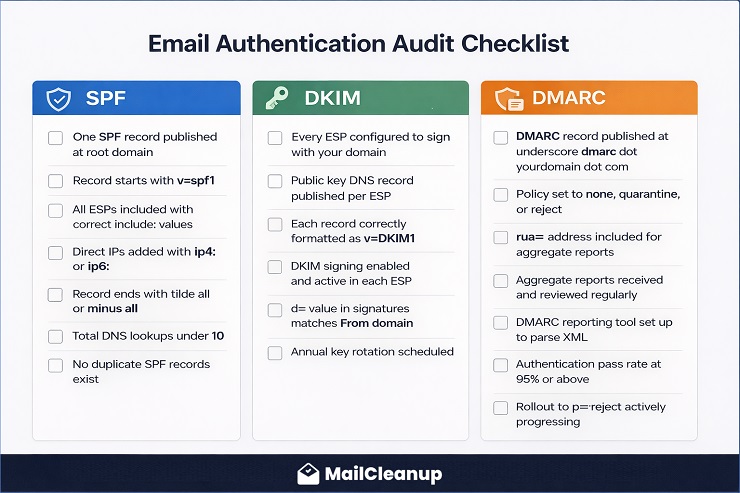
SPF
- One record, starting v=spf1, ending in ~all or -all, under the 10-lookup limit
- Every sending service actually included, no leftover services from tools you’ve dropped
DKIM
- Every ESP signs with your own domain, not its own, using a unique selector per platform
- Keys on a rotation schedule, not set-and-forgotten
DMARC
- Record published, aggregate reports arriving and actually being read
- Rollout genuinely progressing toward reject, not stalled at none
Tools to verify each element
MXToolbox covers SPF lookup, DKIM lookup, and DMARC lookup all in one place and is free for basic checks. Google Postmaster Tools provides ongoing Gmail-specific reputation and delivery data. Microsoft SNDS does the same for Microsoft’s infrastructure. A dedicated DMARC reporting platform (DMARC Analyzer, Valimail, or Dmarcian) makes the aggregate report data actionable without requiring you to parse XML files manually.
Email Authentication Best Practices for 2026 and Beyond
Email authentication best practices have shifted significantly since 2024. What was considered good practice before the ISP mandates, having SPF and maybe DKIM, is now simply the minimum. And what was considered advanced, p=reject DMARC, BIMI, subdomain isolation, is now the target standard for any sender who wants reliable inbox placement and brand protection.
Here is what the baseline and the advanced standard look like in 2026.
The Non-Negotiable Baseline for Every Sender
These are the requirements that every sending domain needs in place, without exception. Not because of ISP mandates alone, but because sending without them is operationally irresponsible given what the alternatives are.
SPF, DKIM, and DMARC, all three: Not SPF and DKIM without DMARC. Not DMARC without DKIM. All three, configured correctly, with DMARC at least at p=quarantine and actively progressing toward p=reject. The 2024 to 2025 ISP mandates made p=none the minimum floor, but treating p=none as a destination rather than a starting point leaves your domain unprotected and your reputation data unused.
Custom DKIM signing with your own domain: Your ESP should sign outgoing mail with a DKIM key published under your domain, not their subdomain. This is the most commonly skipped step in DKIM setup, and it is the one that causes DMARC alignment failures for senders who believe their authentication is complete.
One SPF record per domain, under the 10-lookup limit: Check your lookup count with MXToolbox. If it is at or near 10, fix it before adding any new sending services.
DMARC aggregate reporting actively monitored: Publishing a DMARC record without reading the reports is like installing a security camera and never looking at the footage. The reports tell you who is sending mail from your domain, whether your authentication is working, and whether anyone is attempting to spoof your domain. Check them at minimum monthly, weekly during the rollout stages.
Advanced Best Practices for High-Volume Senders
Once the baseline is solid, these practices are what separate senders who occasionally have deliverability problems from those who rarely do.
Subdomain isolation for separate sending streams: Transactional email, marketing campaigns, and internal communications each have different sending patterns, complaint profiles, and volume characteristics. Separating them into subdomains means that a spike in complaint rate from a marketing campaign does not damage the reputation of your transactional sending domain. It also simplifies SPF management and makes DMARC reporting more granular.
Dedicated IPs for high-volume streams: Senders pushing more than 100,000 emails per month benefit from dedicated IPs that give them full control over their sending reputation rather than being influenced by the behaviour of other senders sharing a pool. The caveat is that dedicated IPs require a proper warm-up before sending at full volume, which typically takes four to eight weeks.
DKIM key rotation on an annual schedule: Rotating DKIM keys annually reduces the risk exposure if a private key is ever compromised. Most major ESPs either handle this automatically (Microsoft 365) or provide a rotation workflow (Google Workspace). For ESPs that require manual rotation, set a calendar reminder and follow the process: publish the new key, update the ESP to use it, verify it is working, then remove the old key.
BIMI as the next milestone after p=reject: Once DMARC enforcement is stable at p=reject and has been running cleanly for at least 30 days, BIMI is the logical next step for senders with a registered trademark or the budget for a VMC. The logo display benefit is real and measurable, particularly for brands with high Gmail audience concentration.
Quarterly authentication audits: DNS records get changed, ESPs get added, subdomains get created, and configurations drift over time. A quarterly run through the authentication audit checklist above catches problems before they show up in your bounce data or DMARC reports.
What Happens If You Don’t Authenticate
This section exists not as a scare tactic but as a clear statement of the actual consequences, because “your emails might go to spam” understates the real risk considerably.
Hard rejection from Gmail and Microsoft for bulk senders: If you send more than 5,000 emails per day to Gmail or Yahoo addresses without SPF, DKIM, and DMARC configured, your emails are being rejected with 5xx SMTP codes. They are not reaching the spam folder. They are not reaching the inbox. They are being returned to your sending infrastructure as permanent failures. The same is true for Microsoft 365 inboxes following the May 2025 enforcement, with the 550 5.7.515 rejection code as the specific signal.
Domain spoofing exposure: Without DMARC enforcement, your domain can be used in phishing attacks and you will not know about it unless someone reports it to you directly. A spoofed email claiming to be from yourcompany.com goes to your customers, asks them to click a link or enter credentials, and the damage to your customer relationships and brand reputation is real regardless of whether you were involved. DMARC at p=reject makes this attack vector effectively unusable against your domain.
Damaged sender reputation that compounds over time: Authentication failures appear as hard bounces in your sending metrics. A sustained pattern of authentication-related hard bounces signals to ISPs that your sending infrastructure is poorly managed, which feeds into the reputation scoring that determines inbox placement for all your sends, not just the ones generating failures. The reputation damage from ignoring authentication is not isolated to individual failed deliveries. It spreads across your entire sending domain.
The irony of the non-authentication position: is that the senders who avoid setting up authentication because it seems complicated are the ones who end up dealing with far more complicated problems as a result. Bounce rate investigations that turn out to be authentication failures. Reputation problems that resist every list-cleaning fix. Phishing complaints from customers pointing back to their own domain. Setting up authentication properly, once, eliminates all of these as ongoing concerns.
You Can Now Authenticate: What to Do Next
Email authentication is the foundation that the rest of your deliverability system stands on. List quality matters, engagement segmentation matters, content quality matters. But all of those variables exist above the authentication layer. If the foundation isn’t solid, the work you put into the layers above it produces less than it should. In fact, it is the first failure mode to diagnose if you find that your emails are not being delivered.
The path from where most senders are today to a properly authenticated sending domain is not as complex as it looks from the outside. SPF and DKIM are one-time DNS record configurations that rarely need to change once they are set up correctly. DMARC takes more active management during the rollout, but once you reach p=reject and your legitimate sending sources are all passing, it runs on its own with periodic report reviews.
The checklist in this guide gives you the complete audit framework. The ISP-specific sections give you the exact steps for your platform. The troubleshooting section gives you the diagnostic framework for anything that breaks along the way.
Once your authentication is in order, the primary remaining variable in your bounce rate is list quality. Invalid addresses, disposable emails, role-based addresses, and contacts whose mailboxes have been deactivated all generate hard bounces regardless of how clean your authentication setup is. That is where bulk list verification makes the difference, and it is what MailCleanup is built for. Run your list through verification after fixing authentication and you will have addressed the two root causes that account for the vast majority of bounce rate problems in a single workflow.
For the complete guide to what each bounce type means and how to act on it, email bounce management is the right next step. And if you are working through a blacklist problem alongside your authentication setup, our email blacklist removal guide covers that process from start to finish.
FAQs on Email Authentication
What is email authentication?
Email authentication is the set of DNS-based protocols that let a receiving server verify an email claiming to be from your domain actually is. SPF authorizes sending IPs, DKIM signs message content cryptographically, and DMARC ties both together and enforces a policy when either fails. Without it, anyone can send email that appears to come from your domain.
What are the main email authentication protocols?
SPF, DKIM, DMARC, and BIMI. SPF and DKIM are the foundational layers; DMARC ties both together with enforcement and reporting; BIMI is the optional visual layer that gives a verified logo in the inbox but it requires DMARC enforcement first. ARC is a fifth, separate protocol that preserves authentication through forwarding chains.
What is the difference between SPF, DKIM, and DMARC?
SPF authorises which servers can send for your domain. DKIM verifies the message itself wasn’t altered in transit, using a cryptographic signature. DMARC requires that at least one of them pass and align with your visible From address, then enforces a policy = none, quarantine, or reject – when neither does.
Do I need SPF, DKIM, DMARC, and BIMI, or can I start with just one?
SPF, DKIM, and DMARC are the three you need – all three, not a subset, since DMARC has nothing to enforce without the other two already in place. BIMI is genuinely optional, and only becomes available once DMARC is already enforcing at quarantine or reject.
What order should I set these up in?
SPF first, then DKIM as both are one-time DNS records. Publish DMARC at p=none once both are live and passing, then move through its staged rollout toward enforcement. BIMI comes last, since it has nothing to check until DMARC is already enforcing. Our DMARC guide covers the full staged timeline.
Does authentication guarantee my emails reach the inbox?
No. Authentication proves your identity, not your list quality or content. A domain can pass SPF, DKIM, and DMARC perfectly and still land in spam if sender reputation or list hygiene is poor. Authentication is one layer of deliverability, not the whole stack – see our guide to all five layers that actually drive deliverability.