
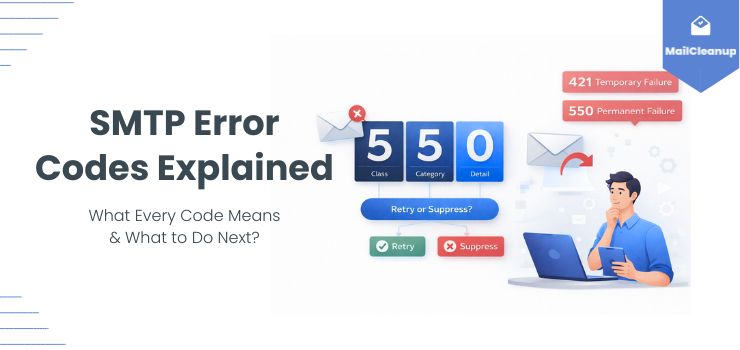
When an email doesn’t reach its destination, your sending platform doesn’t just tell you it failed. It hands you a three-digit number – and in that number is everything you need to know about what went wrong and what to do next.
The problem is that most email marketers don’t speak SMTP. They see a bounce report full of codes like 550, 421, or 554 and have no reliable way to tell the difference between “wait and retry” and “suppress this address immediately.” So they either ignore the codes entirely and keep sending, or they suppress everything and lose contacts they didn’t need to lose.
Both are costly mistakes. And both come from the same place – not having a clear, practical guide to what SMTP error codes actually mean in the context of email marketing.
That’s what this guide is. Not a technical specification for developers, but a working reference for email marketers and list managers – one that tells you what each code means, which ones signal a list quality problem versus an infrastructure problem, how Gmail and Outlook and Yahoo handle the same codes differently, and most importantly, whether to retry the send or suppress the address.
If you haven’t read our guide on what causes email bounces yet, that’s the right starting point for understanding the broader picture. This post is the diagnostic layer in the middle – the one that bridges the cause to the action. For the full fix sequence once you’ve identified the problem, email bounce management covers the operational side in detail.
How to Read an SMTP Error Code?
Before you can act on SMTP error codes, you need to understand what you’re actually looking at. Most marketers see the number and skip straight to “what does this mean” – but the structure of the code itself tells you a significant amount before you even look up the specific digits.
Understanding SMTP error codes starts with knowing how the three-digit structure works, and why the position of each digit matters as much as its value.
The Three-Digit Structure – What Each Position Means
Every SMTP code is exactly three digits. Those three positions aren’t arbitrary – each one carries a specific layer of information about the server’s response.
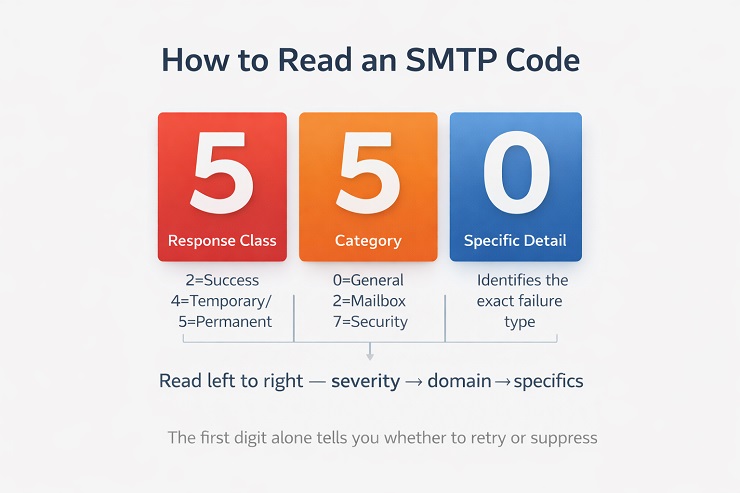
The First Digit – the response class
This is the most important digit. It tells you immediately whether the server accepted the message, whether the problem is temporary and worth retrying, or whether the email delivery failure is permanent and requires immediate list action. There are only three values that matter in practice:
| First Digit | Response Class | What It Means for the Sender |
|---|---|---|
| 2 | Success | The server accepted the command or message – no action needed |
| 4 | Temporary failure | The server encountered a temporary problem – retry is appropriate |
| 5 | Permanent failure | The server permanently rejected the message – suppression required |
The first digit alone is enough to make the retry-vs-suppress decision in most cases. A 4 means wait and retry. A 5 means suppress and don’t retry. That single rule eliminates most of the confusion in reading a bounce report.
The Second Digit – the category of the response
The second digit narrows down which part of the mail delivery system generated the response:
| Second Digit | Category |
|---|---|
| 0 | General or unspecified |
| 1 | Connection and channel-level response |
| 2 | Mailbox or storage-related |
| 3 | Mail system or routing |
| 4 | Network or routing problem |
| 5 | Mail delivery protocol |
| 7 | Security or authentication |
In practice, the second digit tells you whether the problem is about the address itself (2), the infrastructure (0, 1, 3, 4), the protocol (5), or security (7). A 55x code points to a permanent mailbox-related failure. A 57x code points to a permanent security or policy rejection. Those two situations require different responses – even though both start with 5.
The Third Digit – the specific detail
The third digit is the most granular – it distinguishes between specific failure types within the same category. The difference between 550 and 551, for example, is in the third digit, and it carries meaningful diagnostic information about exactly what failed and why.
The practical habit to develop: read all three digits together rather than stopping at the first. The first digit tells you the severity. The second tells you the domain. The third tells you the specifics.
Enhanced Status Codes – The X.Y.Z Extension
Beyond the basic three-digit code, most modern mail servers append an enhanced status code to their responses. This is the X.Y.Z format you’ll see in your bounce logs alongside the basic code – something like 550 5.1.1 or 421 4.7.0.
Enhanced status codes were introduced by RFC 3463 to provide more granular diagnostic information than the basic three-digit code alone could offer. They’re now standard across major ISPs and mail servers, and for email marketers they’re often more diagnostic than the basic code itself – particularly in the 5xx range where a single basic code like 550 can mean a dozen different things depending on the enhanced code attached.
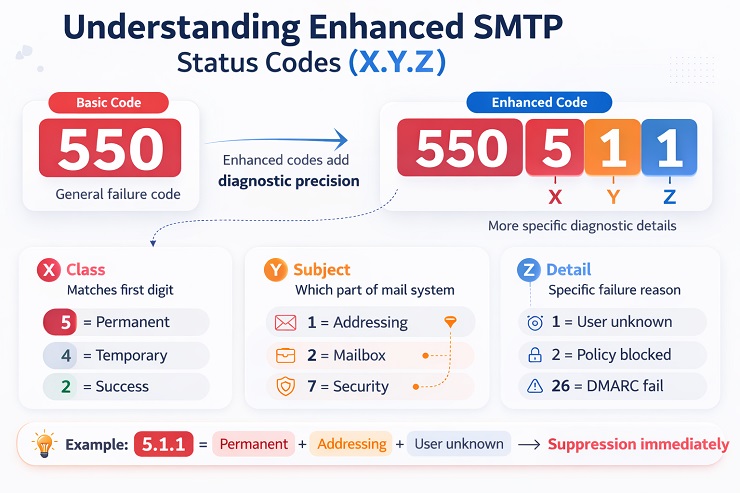
The X.Y.Z structure works like this:
X – the class matches the first digit of the basic code. A 5.x.x enhanced code always accompanies a 5xx basic code. This is consistent and redundant – the class information is the same in both places.
Y – the subject identifies which part of the mail system the status relates to:
| Y Value | Subject |
|---|---|
| 0 | Undefined or not applicable |
| 1 | Addressing – problems with the recipient address |
| 2 | Mailbox – problems with the mailbox itself |
| 3 | Mail system – routing and system-level issues |
| 4 | Network and routing |
| 5 | Delivery protocol – SMTP protocol-level problems |
| 6 | Message content – size, format, or content issues |
| 7 | Security and policy – authentication, encryption, spam policy |
Z – the detail provides specific information within that subject category. The Z value combined with the Y value is what gives the enhanced code its diagnostic precision.
Here’s why this matters in practice. A basic 550 code tells you a message was permanently rejected. But 550 5.1.1 means the user doesn’t exist at that address – suppress immediately, it’s a list quality problem. 550 5.7.1 means the message was rejected by the recipient server’s policy – this could be an authentication failure, a blacklisting, or a content rejection. 550 5.7.26 means specifically that the message failed DMARC authentication. Three completely different causes. Three completely different fixes. All hiding behind the same basic 550.
The enhanced code is where the real diagnostic information lives. Always read both.
Why the Same SMTP Code Can Mean Different Things on Different Servers
This is the most important caveat in reading SMTP error codes – and it’s the one most guides bury in a footnote or skip entirely.
The SMTP standard defines what the codes mean in principle. But individual server administrators configure their own response text, and large ISPs like Gmail, Outlook, and Yahoo append their own identifiers and sub-codes that modify how the standard code should be interpreted. A 421 from Gmail is not the same situation as a 421 from a small corporate mail server. A 550 from Yahoo carries different implications than a 550 from Outlook. We’ll cover ISP-specific variations in detail in a dedicated section later in this guide.
The practical implication right now is this: always read the full bounce message alongside the code, not just the number. The text that accompanies the code – visible in your delivery logs or ESP bounce detail view – is often more diagnostic than the code itself. Phrases like “user unknown,” “policy rejection,” “message rejected due to spam content,” or “account suspended” in the bounce message text narrow down the cause far more precisely than the three digits alone.
The code tells you the severity. The text tells you the story. Read both together, and you’re working with real diagnostic information rather than a partial signal. For a deeper understanding of how bounce types connect to causes, our guide on soft bounce vs hard bounce covers that relationship in full.
2xx SMTP Codes – Success and Confirmation Responses
2xx SMTP error codes aren’t errors at all – they’re confirmation responses from the receiving server that a command or message was accepted successfully. You won’t find these in your bounce reports. But you will encounter them in your sending logs, and understanding what they confirm – and what they don’t – is important context for interpreting everything else.
The critical nuance with 2xx SMTP codes is that acceptance is not the same as inbox delivery. A 250 OK response means the receiving server accepted the message for processing. It does not mean the message reached the inbox. What happens after acceptance – spam filtering, folder routing, quiet discard – is outside the SMTP conversation and invisible to your sending infrastructure. This is why email deliverability and inbox placement are separate metrics from bounce rate, and why a clean bounce report doesn’t automatically mean your emails are reaching the inbox.
Here are the 2xx codes and what each one means:
| Code | Name | What It Means | What the Marketer Sees | Action |
|---|---|---|---|---|
| 211 | System Status | Server status response to a STATUS request | Appears in log queries, not in campaign sends | None – informational only |
| 214 | Help Response | Server responded to a HELP command | Not visible in normal sending | None – informational only |
| 220 | Service Ready | The server is ready to receive the connection | Connection established successfully | None – sending proceeds normally |
| 221 | Service Closing | Server is closing the transmission channel after completing the exchange | Connection closed cleanly | None – normal end of session |
| 235 | Authentication Successful | SMTP authentication completed successfully | Authentication accepted by receiving server | None – proceed with sending |
| 250 | Requested Action Completed | Message accepted by the receiving server | “Delivered” or “Accepted” in ESP log | No action – but monitor inbox placement separately |
| 251 | User Not Local, Will Forward | Recipient address is not on this server – the server will forward to the correct destination | Appears as delivered in most ESPs | Monitor – forwarded messages can still bounce at the destination |
| 252 | Cannot Verify User, Will Attempt Delivery | Server cannot confirm the address exists but will try to deliver anyway | Usually treated as delivered | Treat with caution – common with catch-all domains |
The codes that deserve closer attention for email marketers:
250 is the code you want to see. It’s the confirmation that the receiving server accepted the message. However, as noted above, this confirmation sits at the SMTP layer – not the inbox layer. ISPs regularly accept messages with a 250 and then route them to spam or discard them quietly based on content filtering that happens after the SMTP conversation ends. A high 250 rate combined with low engagement metrics is often the signal that something beyond list quality or infrastructure is affecting deliverability – typically content or sender reputation. For what happens when those signals compound into a high bounce rate, see our guide on what happens when email bounce rate is high.
252 is the code most commonly associated with catch-all domains. The server is telling you it can’t confirm whether the individual address exists, but it will attempt delivery. If you’ve been sending to a contact for years and suddenly see a 252, the domain may have recently changed its MX configuration. More commonly, a 252 response on a new address you haven’t previously mailed is the signature of a catch-all domain – one that accepts all inbound mail regardless of whether the specific mailbox exists. We covered how to handle catch-all domains in the list verification section of our email bounce fix guide.
251 warrants a note for senders with B2B lists. A forwarded message that reaches its final destination successfully is fine. But forwarded messages can produce secondary bounces at the destination server – bounces that return to the original sender – and those can look like list quality problems when the source address is technically valid. If you see 251 responses accompanied by subsequent bounces on the same addresses, the forwarding chain itself is the variable to investigate.
4xx SMTP Codes – Temporary Failures
4xx SMTP error codes are the soft bounce territory – temporary failures that indicate the receiving server encountered a problem it expects to resolve on its own, or that your sending infrastructure triggered a condition that will clear with time or a volume adjustment. The message wasn’t delivered, but it wasn’t permanently rejected either. The door is still open.
The challenge with 4xx SMTP codes is that “temporary” covers an enormous range of situations. A full mailbox is temporary. A server being down for maintenance is temporary. A rate-limiting response from Gmail because you sent too much volume too fast is also technically temporary – but the correct response to that situation is very different from the correct response to a full mailbox. Understanding the distinction between what’s temporary on the recipient’s side and what’s temporary because of your own sending behaviour is what separates a sender who recovers cleanly from one who compounds the problem by retrying blindly.
What “Temporary” Actually Means for Your Sending Queue?
When your ESP receives a 4xx response, it doesn’t simply drop the message. Most modern sending platforms queue the message for retry – attempting delivery again after a waiting period, typically using exponential backoff logic. This means the first retry might happen after five minutes, the second after thirty, the third after two hours, and so on – with the total retry window usually spanning 24 to 72 hours depending on your ESP’s configuration.
This automatic retry behaviour is correct for most 4xx situations, and you should let it run. The problem begins when the same address produces 4xx SMTP errors across multiple campaigns – not just multiple retries within the same send, but repeated failures across separate sends on separate days. At that point, the address is telling you something that the retry logic isn’t designed to resolve. Three or more 4xx failures on the same address across different campaigns is the threshold at which automatic retry stops being the right response and list action begins.
The second complication with temporary SMTP errors is greylisting. Some receiving servers deliberately return a temporary 4xx response to the first delivery attempt from an unknown sender – not because anything is wrong, but as a spam filtering technique. The logic is that legitimate mail servers retry and spam servers typically don’t. If your ESP retries and the second attempt succeeds, greylisting was the cause and no list action is needed. If the retry pattern continues to produce 4xx failures, something else is going on.
Here’s the framework for deciding when to act:
| Scenario | What It Means | Action |
|---|---|---|
| 4xx on first attempt, success on retry | Greylisting or transient server issue | No action – normal behaviour |
| 4xx across all retries within one campaign | Persistent temporary problem – server unavailable or throttling | Let retry window expire – check again next campaign |
| 4xx on same address across 3+ separate campaigns | Address is consistently problematic | Move to re-engagement or run verification |
| 4xx affecting large proportion of same domain | Domain-level block or server issue | Check infrastructure and authentication for that domain |
| 4xx following a volume spike in your sending | Rate limiting triggered by your behaviour | Reduce volume – see rate limiting section below |
For the complete sequence of actions once temporary failures start accumulating into a list management problem, our guide on how to reduce email bounce rate covers the full fix process.
The High-Impact 4xx SMTP Codes Every Marketer Should Know
Not all 4xx responses carry the same weight. Some are routine server hiccups that resolve automatically. Others are direct signals about your sending behaviour – rate limiting, reputation flags, or authentication warnings that require sender-side action before the retry will succeed. Here are the codes that matter most for email marketers:
421 – Service Not Available / Rate Limiting
| Field | Detail |
|---|---|
| Full name | Service not available, closing transmission channel |
| Bounce type | Soft bounce |
| Retry? | Yes – but with volume reduction first |
| Suppress? | No – unless recurring across 5+ campaigns |
The 421 is one of the most important SMTP codes to understand because it’s almost always a signal about your sending behaviour rather than a problem with the recipient address. When a major ISP returns a 421, it typically means you’ve exceeded the volume or connection rate they’re willing to accept from your sending IP or domain at that moment. Gmail, Yahoo, and Outlook all use 421 aggressively as a throttling mechanism – and each adds its own sub-code that specifies the reason more precisely.
The critical mistake senders make with a 421 is retrying at the same volume. Also, if 421 deferrals are appearing early in a new domain’s sending history, the root cause is almost always an insufficient or skipped email warmup. The fix is to pull back to a lower daily volume and follow a structured ramp rather than retrying at the same rate.
If a 421 appears consistently across campaigns – not just as an isolated throttle response – it’s a signal that your sender reputation with that ISP has deteriorated enough that they’re routinely limiting your access. That’s an infrastructure and reputation problem, not a list problem, and retrying harder makes it worse.
422 – Mailbox Full
| Field | Detail |
|---|---|
| Full name | Recipient mailbox has exceeded its storage limit |
| Bounce type | Soft bounce |
| Retry? | Yes – once or twice |
| Suppress? | If recurring across 3+ campaigns on same address |
A full mailbox is genuinely temporary in most cases. The recipient clears space, your next send goes through. But an address that returns 422 consistently across multiple campaigns belongs to someone who either isn’t checking that inbox anymore or has abandoned the account. That pattern – a full mailbox that never clears – is the early signal of an account progressing toward deactivation. Three consecutive 422 responses across separate campaigns is the threshold for moving this address to re-engagement before it becomes a hard bounce.
450 – Mailbox Unavailable
| Field | Detail |
|---|---|
| Full name | Requested mail action not taken – mailbox unavailable |
| Bounce type | Soft bounce |
| Retry? | Yes |
| Suppress? | If recurring – investigate further |
The 450 is a broad temporary rejection that can mean several different things depending on the receiving server configuration. It could indicate the mailbox is temporarily locked, the server is rejecting mail from your IP based on a reputation check that may clear, or the domain’s mail server is having intermittent issues. The text message accompanying the 450 is particularly important here – it often contains more specific information about the cause than the code itself. Look at the full bounce message before deciding whether this is a recipient-side issue or a reputation-related block.
451 – Local Processing Error
| Field | Detail |
|---|---|
| Full name | Requested action aborted – local error in processing |
| Bounce type | Soft bounce |
| Retry? | Yes |
| Suppress? | No – unless pattern persists |
A 451 usually indicates a problem on the receiving server’s side – a processing error that it expects to resolve on its own. This is one of the more benign 4xx codes from a list management perspective. However, some servers return 451 in response to grey-area content or authentication issues that fall short of a full rejection. A 451 accompanied by text mentioning “spam” or “policy” is a content or authentication warning rather than a pure server-side error – treat it accordingly and check your authentication setup before the next send.
452 – Insufficient System Storage
| Field | Detail |
|---|---|
| Full name | Requested action not taken – insufficient system storage |
| Bounce type | Soft bounce |
| Retry? | Yes |
| Suppress? | No |
A 452 indicates the receiving server has a storage problem – not the individual mailbox, but the server itself. This is almost always a transient infrastructure issue on the recipient’s end that resolves without any action on your part. Let the retry logic handle it. If you’re seeing 452 responses across a large proportion of addresses at the same domain simultaneously, the receiving server is having a broader capacity problem – wait it out rather than retrying aggressively.
454 – TLS Not Available
| Field | Detail |
|---|---|
| Full name | TLS not available due to temporary reason |
| Bounce type | Soft bounce – but signals a configuration issue |
| Retry? | With caution |
| Suppress? | No – but investigate TLS configuration |
A 454 response means the receiving server couldn’t establish the encrypted connection your sending server requested. This is usually a temporary TLS negotiation failure – but if it appears consistently on sends to the same domain, it may indicate a TLS configuration mismatch between your sending infrastructure and the recipient server. Check with your ESP whether TLS is being enforced or offered opportunistically, and whether the receiving domain has known TLS configuration issues.
471 – Anti-Spam Filter Rejection
| Field | Detail |
|---|---|
| Full name | Delivery not authorised – anti-spam filter or firewall blocked |
| Bounce type | Soft bounce – but often precedes harder action |
| Retry? | After content review |
| Suppress? | No – but review content before retry |
A 471 is a warning shot from the receiving server’s spam filtering system. The message was blocked, but not permanently rejected. The correct response is to review the content of the sending campaign before retrying – look for spam trigger language, broken authentication, or anything that may have caused the filter to flag the message. Retrying the same content without any changes after a 471 often results in a harder rejection on the next attempt.
When a 4xx Code Becomes a List Management Problem
The transition point from “let the retry logic handle it” to “this is a list management problem” is one of the most practically important things to understand about 4xx SMTP errors – and one that most guides skip entirely.
Here’s the specific threshold to apply: if the same address returns a 4xx code across three or more separate campaigns – not retries within the same campaign, but genuinely separate sends on different dates – it’s no longer a transient server problem. It’s a signal about the address itself, or about your relationship with the ISP serving that address.
At that threshold, the correct action depends on what the recurring code is:
- Recurring 421 or 450 from a major ISP (Gmail, Outlook, Yahoo): The problem is likely reputation-related rather than address-specific. The ISP is consistently throttling or deferring your mail to that domain. Investigate your sender reputation with that specific ISP using Google Postmaster Tools or Microsoft SNDS before continuing to send.
- Recurring 422 (full mailbox): The address is progressively abandoning the account. Move it to re-engagement immediately – if re-engagement produces no response, suppress before the account deactivates fully and converts to a hard bounce.
- Recurring 451 with spam-related text: Your content is repeatedly triggering a grey-area filter response at the receiving server. Review content before next send.
- Any 4xx on an address that has never successfully delivered: If an address has never produced a 250 response across multiple send attempts, treat it as functionally invalid and run it through verification before sending again. An address that can’t receive mail is producing soft bounce risk on every campaign even though it hasn’t technically hard bounced yet.
5xx SMTP Codes – Permanent Failures
5xx SMTP error codes are the hard bounce category – permanent failures where the receiving server has definitively rejected the message and is telling your sending infrastructure not to try again. There is no retry logic that applies to a 5xx response. There is no “wait and see.” A 5xx code means one thing: suppress this address and remove it from your active sending list before your next campaign.
The reason the suppression rule is absolute for 5xx codes isn’t just about that individual failed delivery. It’s about what happens to your sender reputation when you keep sending to addresses that have already produced permanent failures. ISPs track how many of your sends result in 5xx responses – particularly the major ones like 550, 551, and 554. A sender who regularly mails to addresses that generate permanent failures is sending a clear signal to ISPs that their list quality is poor, their acquisition practices are questionable, or their list management is non-existent. Any of those conclusions leads to the same outcome: reputation deterioration, increased filtering, and eventually bulk folder placement or outright blocking across large portions of your list.
The connection between 5xx codes and sender reputation damage is direct and cumulative. Every permanent failure you send to after the first one is a reputation cost you’re paying unnecessarily. Suppression on first 5xx occurrence is not conservative list management – it’s the minimum standard. For the full picture of how bounce patterns damage reputation over time, see our guide on email sender reputation.
Address and Mailbox Failures – 550 Through 553
These are the most common permanent failure codes in any bounce report, and they all relate to problems with the recipient address or mailbox itself.
550 – Mailbox Unavailable / Action Not Taken
| Field | Detail |
|---|---|
| Full name | Requested action not taken – mailbox unavailable |
| Bounce type | Hard bounce |
| Retry? | Never |
| Suppress? | Immediately |
The 550 is the single most common hard bounce code in email marketing – and also the most variable in its meaning depending on the enhanced status code and text message attached to it. The basic code tells you the message was permanently rejected. The enhanced code tells you why. The distinction matters because different causes point to different root problems in your list or infrastructure.
Here are the critical 550 enhanced code variants:
| Enhanced Code | Meaning | Root Cause | Action |
|---|---|---|---|
| 550 5.1.1 | User unknown / mailbox does not exist | Invalid address – list quality problem | Suppress immediately – verify acquisition source |
| 550 5.1.2 | Bad destination mailbox address | Address format or domain problem | Suppress – check acquisition source for format errors |
| 550 5.2.1 | Mailbox disabled | Account exists but has been deactivated | Suppress – account no longer active |
| 550 5.7.1 | Policy rejection | Authentication failure, blacklisting, or content policy block | Suppress address but investigate infrastructure – this may not be a list problem |
| 550 5.7.26 | DMARC authentication failure | Your DMARC record is failing or missing | Fix DMARC before next campaign – this affects all sends, not just this address |
| 550 5.7.606 | Sending from blocked IP range (Outlook-specific) | Your sending IP is on Microsoft’s block list | IP delisting required – not a list problem |
The most important distinction in the 550 family is between 5.1.x codes and 5.7.x codes. A 5.1.x code points to a list quality problem – the address is invalid, doesn’t exist, or has been deactivated. Suppress the address and look at where it came from. A 5.7.x code points to an infrastructure or policy problem – authentication failure, blacklisting, or reputation-based rejection. Suppressing the address doesn’t fix the underlying problem, and the same rejection will happen on your next send to a different address through the same infrastructure. When you see 5.7.x codes in volume, the fix is in your infrastructure, not your list.
551 – User Not Local / Please Try Forwarding
| Field | Detail |
|---|---|
| Full name | User not local – please try forwarding to correct address |
| Bounce type | Hard bounce in practice |
| Retry? | No |
| Suppress? | Yes – unless forwarding address is provided |
A 551 indicates the recipient address doesn’t exist on that server and the server is suggesting the sender try a different address. In theory, the bounce message sometimes includes the correct forwarding address. In practice, this almost never contains actionable forwarding information for bulk senders. Treat it as a hard bounce and suppress.
552 – Exceeded Storage Allocation
| Field | Detail |
|---|---|
| Full name | Requested mail action aborted – exceeded storage allocation |
| Bounce type | Context-dependent – see note |
| Retry? | Once only |
| Suppress? | If retry fails |
A 552 is the permanent version of the full mailbox failure – where the 422 is temporary (the mailbox is currently full but the account is active), a 552 indicates the storage limit has been permanently exceeded in a way the server is treating as a definitive rejection. Some servers use 452 and 552 interchangeably for storage issues, which adds ambiguity. If a retry after 24 hours still produces a 552, treat it as a hard bounce and suppress.
553 – Mailbox Name Not Allowed
| Field | Detail |
|---|---|
| Full name | Requested action not taken – mailbox name not allowed |
| Bounce type | Hard bounce |
| Retry? | Never |
| Suppress? | Immediately |
A 553 indicates the recipient address violates the receiving server’s naming policies – either the address format is invalid, the local part (the part before the @) is not permitted, or the address structure doesn’t conform to what that server accepts. This is a permanent list quality problem. Suppress immediately and check the acquisition source for systematic address format issues if you’re seeing multiple 553 responses from the same source.
Authentication and Policy Failures – 554 Through 556
These codes indicate permanent rejection based on policy, content, or security grounds rather than address validity problems. They’re among the most important SMTP errors to understand because they often signal infrastructure problems that will affect your entire sending programme, not just individual addresses.
554 – Transaction Failed / Message Rejected
| Field | Detail |
|---|---|
| Full name | Transaction failed – no valid recipients |
| Bounce type | Hard bounce |
| Retry? | Never |
| Suppress? | Address – but investigate cause first |
The 554 is the broadest permanent failure code in the SMTP standard – and the one that requires the most careful reading of the accompanying text message. On its own, 554 means “this transaction failed permanently.” But the reason could be any of several different causes, and identifying the right one is essential before deciding what to fix.
Common 554 scenarios and what they mean:
| Accompanying Text | Cause | Action |
|---|---|---|
| “Message rejected as spam” | Content triggered spam filter | Review content – not a list problem |
| “IP blacklisted” or “blocked” | Sending IP is on a blacklist | Initiate delisting – not a list problem |
| “No valid recipients” | All recipient addresses in the batch are invalid | List quality problem – verify the segment |
| “Rejected for policy reasons” | Domain-level policy block | Investigate authentication and sending history |
| “SPF check failed” | SPF record missing or misconfigured | Fix SPF record before next send |
The rule for 554 is: suppress the address, but always read the text. If the text points to a content or infrastructure cause, fixing the address suppression is only half of the required action.
555 – Parameters Not Recognised
| Field | Detail |
|---|---|
| Full name | MAIL FROM or RCPT TO parameters not recognised or not implemented |
| Bounce type | Hard bounce – but usually a sender-side configuration issue |
| Retry? | After fixing sender configuration |
| Suppress? | Not necessarily – check sender setup first |
A 555 indicates the receiving server doesn’t recognise the parameters in your MAIL FROM or RCPT TO commands. This is almost always a sender-side issue – a misconfiguration in your ESP or sending infrastructure rather than a problem with the recipient address. Check your sending setup before suppressing contacts who may have received this code due to a configuration error on your end.
556 – Domain Does Not Accept Mail
| Field | Detail |
|---|---|
| Full name | Domain does not accept mail |
| Bounce type | Hard bounce |
| Retry? | Never |
| Suppress? | Immediately – and all addresses at that domain |
A 556 means the entire recipient domain has been configured to reject inbound email – not just a specific address, but the domain itself. This is rare but definitive. When you see a 556, suppress not just the specific address that bounced but all addresses in your list that share the same domain. If a domain doesn’t accept mail, none of your contacts at that domain can be reached, and continuing to send to them generates unnecessary hard bounce risk.
The 5xx Codes That Signal Sender-Side Configuration Errors
The codes in the 500–504 range are different in character from the rest of the 5xx series. Where 550–556 indicate permanent failures related to the recipient address or policy, 500–504 indicate that the receiving server couldn’t process your sending server’s commands – which points to a configuration problem on your side, not a list quality problem.
500 – Syntax Error / Command Unrecognised
The receiving server couldn’t recognise the SMTP command your server sent. This is a sender-side protocol error – usually caused by a misconfiguration in your ESP or sending software. If you’re seeing 500 errors in volume, contact your ESP immediately. This is not a list problem.
501 – Syntax Error in Parameters
The command was recognised but the parameters were malformed. Again, a sender-side issue – typically a misconfiguration in how your sending platform is formatting the MAIL FROM or RCPT TO commands. Check your ESP configuration.
502 – Command Not Implemented
Your sending server issued a command that the receiving server doesn’t support. This can happen when sending infrastructure uses features or extensions that the recipient server hasn’t implemented. Not a list problem – a compatibility issue between sending and receiving infrastructure.
503 – Bad Sequence of Commands
The commands were sent in the wrong order. This is a sender-side SMTP session management error. Not a list problem – your sending infrastructure is running the SMTP conversation in an incorrect sequence.
504 – Command Parameter Not Implemented
Similar to 502 but more specific – the command is recognised but a specific parameter within it isn’t supported. Sender-side configuration issue.
The key point about 500–504 codes: none of these warrant suppressing the recipient addresses that generated them. The problem is in your sending configuration, not in the contacts’ addresses. If you’re seeing these codes, address the infrastructure issue first – using the authentication and infrastructure repair process covered in our email bounce fix guide – and then assess whether a retry is appropriate once the configuration is corrected.
ISP-Specific SMTP Code Variations – Gmail, Outlook, and Yahoo
This is where SMTP error codes get genuinely complicated for email marketers – and where the gap between “I looked up the code” and “I understand what’s actually happening” is widest.
The SMTP standard defines what codes mean in principle. But Gmail, Outlook, and Yahoo don’t operate on principle alone. Each of these ISPs has built their own layer of sub-codes, identifiers, and response text patterns on top of the standard – and those additions change how the standard code should be interpreted and what action it requires. A 421 from Gmail is a rate-limiting signal with specific volume thresholds behind it. A 421 from a small corporate server is probably a transient connection issue. Treating them the same way produces the wrong response in at least one of those situations.
This section covers the ISP-specific SMTP codes you’re most likely to encounter when sending to Gmail, Outlook, and Yahoo inboxes – which, combined, account for the majority of consumer and business email addresses on most marketing lists.
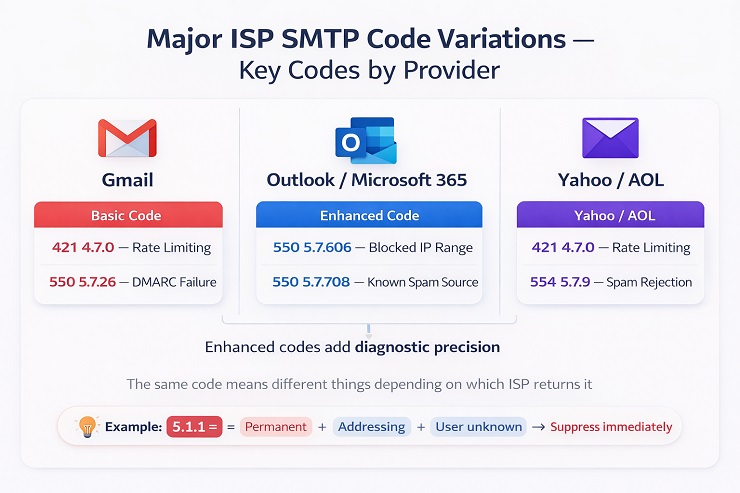
Gmail SMTP Codes and What They Mean
Gmail is the most nuanced ISP to send to from an SMTP error perspective because Google uses its response codes to communicate detailed information about why a message was rejected – information that goes well beyond what the standard code alone conveys. Learning to read Gmail’s SMTP errors means learning to read both the code and the accompanying identifiers.
Gmail’s identifiers – what to look for in the bounce message
Gmail appends specific identifiers to its bounce messages that tell you which of its systems generated the rejection:
- -gsmtp – the rejection came from Gmail’s standard mail processing system. This is the most common identifier and appears across a wide range of Gmail rejection codes.
- -gcdp – the rejection came from Gmail’s Custom Domain Policy system – typically relevant for Google Workspace domains with custom policy configurations.
These identifiers appear at the end of the bounce message text and confirm that the response is coming from Google’s infrastructure rather than a third-party server. When you see -gsmtp or -gcdp in a bounce message, you’re dealing with a Gmail-specific rejection that requires a Gmail-specific response.
Key Gmail SMTP codes:
| Code | Enhanced Code | Gmail Meaning | Action |
|---|---|---|---|
| 421 | 4.7.0 | Rate limiting – you’ve exceeded Gmail’s acceptable sending rate from your IP | Reduce sending volume immediately – do not retry at same rate |
| 421 | 4.7.28 | Sending IP not authorised for this sender domain – SPF or alignment issue | Fix SPF alignment before retrying |
| 550 | 5.1.1 | Gmail account does not exist – address is invalid | Suppress immediately – list quality problem |
| 550 | 5.2.1 | Gmail account is disabled or suspended | Suppress immediately – account no longer active |
| 550 | 5.7.1 | Message rejected by Gmail policy – authentication failure or reputation block | Check SPF, DKIM, DMARC and sender reputation before retrying |
| 550 | 5.7.26 | DMARC authentication failure – message failed DMARC check | Fix DMARC record immediately – affects all Gmail sends |
| 550 | 5.7.350 | Message blocked due to forwarding configuration | Not a list problem – forwarding chain issue |
| 554 | 5.7.9 | Message rejected – authentication not passing | Fix authentication setup – not a list problem |
The Gmail codes that require the most attention:
550 5.7.26 is one of the most damaging SMTP errors a bulk sender can encounter with Gmail – because it’s not an isolated address failure, it’s an infrastructure failure that affects every message you send to Gmail simultaneously. A single 550 5.7.26 response is a signal that your DMARC configuration is either missing, misconfigured, or set to p=none in a way that Gmail has decided to treat as a policy failure. Until the DMARC record is corrected, every send to Gmail is at risk of the same rejection. This is not a suppress-the-address situation – it’s a fix-the-infrastructure-immediately situation.
421 4.7.0 from Gmail requires a specific response that’s different from how most senders handle a standard 421. Gmail’s rate limiting is based on your sending IP’s reputation and volume history with Gmail specifically. Retrying at the same rate after a Gmail 421 reinforces the behaviour that triggered the limit. The correct response is to reduce your sending rate to that IP for the next 24 to 48 hours, allow the retry queue to process more slowly, and review your Google Postmaster Tools domain reputation score to understand whether this is a one-time threshold hit or a pattern of deteriorating reputation.
Outlook and Microsoft 365 SMTP Codes
Microsoft’s mail infrastructure – covering Outlook.com, Hotmail, and Microsoft 365 business accounts – uses a different set of sub-codes and response patterns from Gmail. Where Gmail’s rejections tend to be precise and well-documented, Microsoft’s SMTP errors often require cross-referencing with the Microsoft Smart Network Data Services (SNDS) tool to understand the full picture.
Key Outlook and Microsoft 365 SMTP codes:
| Code | Enhanced Code | Microsoft Meaning | Action |
|---|---|---|---|
| 421 | 4.7.0 | Temporary service unavailability or connection throttling | Retry with reduced volume |
| 550 | 5.1.10 | Recipient address rejected – address does not exist | Suppress immediately |
| 550 | 5.4.1 | Recipient address rejected – access denied | Check authentication and sending IP reputation |
| 550 | 5.7.1 | Message rejected due to policy – spam or authentication failure | Investigate authentication and content |
| 550 | 5.7.606 | Sending from a blocked IP range | IP delisting required via Microsoft’s delisting portal |
| 550 | 5.7.708 | Sending from a known spam source | Significant reputation remediation required |
| 550 | 5.7.711 | Account sending junk email | ESP-level account review required |
| 451 | 4.7.500 | Access denied – IP sending too much mail flagged as spam | Reduce volume and review sending practices |
The Microsoft codes that require the most attention:
550 5.7.606 is Microsoft’s IP blocklist code – and it’s one of the more disruptive SMTP errors a sender can encounter because it blocks delivery to the entire Microsoft ecosystem simultaneously, covering Outlook.com, Hotmail, and any Microsoft 365 business account. The cause is sending from an IP range that Microsoft has flagged as a source of spam or abuse. The fix is submitting a delisting request through Microsoft’s dedicated delisting portal – the same process covered in our guide on removing your domain from blacklisting.
The important nuance with 5.7.606 specifically is that the block is on the IP range, not just your individual sending IP – which means if you’re on a shared IP with other senders, the block may have been triggered by someone else’s behaviour rather than your own.
550 5.7.708 indicates Microsoft has classified your sending source as a known spam origin – a more serious reputation signal than 5.7.606. This code typically requires direct engagement with Microsoft’s support team in addition to any delisting request, and a sustained period of clean sending before full deliverability to Microsoft inboxes is restored.
Microsoft SNDS – the diagnostic tool that makes Outlook codes readable
Microsoft’s Smart Network Data Services portal gives senders visibility into how their sending IP is performing with Microsoft’s mail infrastructure – including spam complaint rates, trap hits, and the specific reason codes behind any blocks. Cross-referencing Outlook SMTP errors with SNDS data is the fastest way to diagnose whether a Microsoft rejection is a list quality problem, an IP reputation problem, or a content problem. If you’re seeing consistent Microsoft-specific SMTP codes and don’t have SNDS set up for your sending IPs, setting it up should be the first diagnostic step.
Yahoo SMTP Error Codes
Yahoo – which also covers AOL mail and Verizon Media addresses – is among the most aggressive ISPs when it comes to rate limiting and reputation-based filtering. Yahoo’s SMTP errors are known for being less descriptive than Gmail’s or Microsoft’s, which means the action required isn’t always obvious from the code alone. Yahoo also responds particularly strongly to spam complaint rates – a complaint rate above 0.3% to Yahoo addresses can trigger filtering and blocking responses that persist well beyond the campaign that generated them.
Key Yahoo SMTP codes:
| Code | Enhanced Code | Yahoo Meaning | Action |
|---|---|---|---|
| 421 | 4.7.0 | Rate limiting – sending too fast or too much | Reduce volume – wait before retrying |
| 451 | 4.7.1 | Temporary deferral – spam filter holding message | Retry – review content if recurring |
| 550 | 5.7.9 | Message rejected – authentication not passing | Fix SPF, DKIM, or DMARC immediately |
| 553 | 5.1.3 | Invalid address syntax | Suppress immediately – list quality problem |
| 554 | 5.7.9 | Message rejected as spam | Content and reputation review required |
The Yahoo patterns that require the most attention:
Yahoo’s 421 4.7.0 is more aggressive than the equivalent Gmail code and triggers at lower volume thresholds – particularly for newer sending IPs or domains that haven’t built a positive reputation with Yahoo’s infrastructure yet. Yahoo rate limiting often appears as a sustained pattern across multiple campaigns rather than an isolated throttle event, and recovering from it requires a consistent period of lower-volume, high-engagement sending before Yahoo begins accepting traffic at normal rates again.
Yahoo’s 554 5.7.9 spam rejection is notable because Yahoo’s spam filtering is heavily weighted toward complaint rate data. If you’re receiving this code on sends to Yahoo addresses, the most likely cause is that previous campaigns to Yahoo recipients generated complaint rates above Yahoo’s threshold – and Yahoo is now filtering based on that historical signal rather than the content of the current campaign. Fixing the content alone won’t resolve this. The underlying complaint rate history needs to improve, which means prioritising engagement-segmented sends to Yahoo addresses and suppressing any Yahoo contacts who have shown no engagement in the past 90 days before your next campaign.
How ESPs Translate SMTP Codes Into Bounce Categories?
Most email marketers never see raw SMTP error codes in their day-to-day work. What they see are the translated bounce labels their ESP assigns – “hard bounce,” “soft bounce,” “block bounce,” “technical bounce” – displayed in campaign reports and list management dashboards. Understanding how that translation works, and where it loses diagnostic information, is essential for using bounce data effectively.
The translation layer exists for a good reason. Raw SMTP codes are difficult to act on directly, especially at scale. ESPs simplify them into actionable categories to make list management faster. But that simplification comes with a cost: different ESPs translate the same raw SMTP code into different category labels, and some codes carry nuance that the category label doesn’t preserve. A 550 5.7.1 and a 550 5.1.1 both become “hard bounce” in most ESP dashboards – even though one points to a list quality problem and the other points to an infrastructure problem that no amount of list cleaning will fix.
Why ESP Bounce Labels Don’t Always Tell the Full Story?
The information loss in ESP bounce translation matters most in three specific situations:
When diagnosing a sudden bounce rate spike. If your bounce rate jumped on a specific campaign, the ESP label tells you how many bounced – but not why. A spike driven by 550 5.7.1 rejections requires a completely different response than a spike driven by 550 5.1.1 rejections. Both show up as “hard bounce” in your dashboard. Only the raw SMTP code tells you which problem you’re dealing with.
When deciding whether to investigate infrastructure. 5.7.x codes indicate policy and infrastructure problems. 5.1.x codes indicate address problems. An ESP that labels both as “hard bounce” without preserving the enhanced code gives you no basis for distinguishing between “clean your list” and “fix your authentication.” Accessing the raw SMTP code data is what enables the correct diagnostic path.
When a platform migration has introduced a configuration error. Post-migration bounces from 500–504 codes – sender-side configuration errors – look identical to address-quality bounces in most ESP dashboards. Without accessing raw SMTP codes, a sender might spend weeks cleaning a list that doesn’t need cleaning while the real problem (a broken SMTP session configuration) continues affecting every send.
How to access raw SMTP codes in major ESPs:
| ESP | Where to Find Raw SMTP Data |
|---|---|
| Mailchimp | Campaign Reports → Activity → Bounced → Export bounce list – raw codes in the exported CSV |
| Klaviyo | Analytics → Deliverability → Bounces → Select individual bounce event for full SMTP response |
| HubSpot | Marketing → Email → Campaign → Details → Bounces tab → Export for raw data |
| ActiveCampaign | Reports → Email Reports → Bounced → View bounce details for individual contacts |
| Sendgrid / Twilio | Activity Feed → Filter by bounce event → Click individual event for full SMTP response |
| Mailgun | Logs → Message Logs → Filter by failed → Full SMTP response visible per message |
The ESP Bounce Category Translation Map
Use this as your reference for translating between raw SMTP codes, ESP category labels, and the correct action:
| Raw SMTP Code | Enhanced Code | What It Means | Typical ESP Label | Correct Action |
|---|---|---|---|---|
| 550 | 5.1.1 | User unknown – address doesn’t exist | Hard bounce | Suppress – list quality problem |
| 550 | 5.1.2 | Bad destination address | Hard bounce | Suppress – check acquisition source |
| 550 | 5.2.1 | Mailbox disabled | Hard bounce | Suppress – account deactivated |
| 550 | 5.7.1 | Policy rejection | Hard bounce | Suppress address – but fix infrastructure |
| 550 | 5.7.26 | DMARC failure | Hard bounce | Fix DMARC immediately – infrastructure problem |
| 554 | 5.7.9 | Spam rejection | Hard bounce | Content and reputation review |
| 421 | 4.7.0 | Rate limiting | Soft bounce | Reduce volume – retry more slowly |
| 422 | – | Mailbox full | Soft bounce | Retry – suppress if recurring |
| 450 | – | Mailbox unavailable | Soft bounce | Retry – investigate if recurring |
| 451 | – | Local processing error | Soft bounce | Retry – check content if recurring |
| 500–504 | – | Sender configuration error | Technical / General bounce | Fix sender configuration – do not suppress |
| 553 | 5.1.3 | Invalid address syntax | Hard bounce | Suppress – list quality problem |
| 556 | – | Domain doesn’t accept mail | Hard bounce | Suppress all addresses at that domain |
The column that matters most in this table is the final one – Correct Action. Notice how several codes that share the same ESP label (hard bounce) require fundamentally different responses. That’s the information the label alone can’t give you.
The Retry vs Suppress Decision Framework
The most practical application of SMTP error codes for email marketers is knowing whether to retry the send or suppress the address – and knowing it quickly enough to act before the next campaign goes out. Everything in this guide has been building toward this framework.
The decision rules aren’t complicated once you have the code-level understanding from the sections above. The challenge is applying them consistently and systematically rather than making ad hoc judgments on individual bounces. This framework gives you a single reference point for every code you’ll encounter.
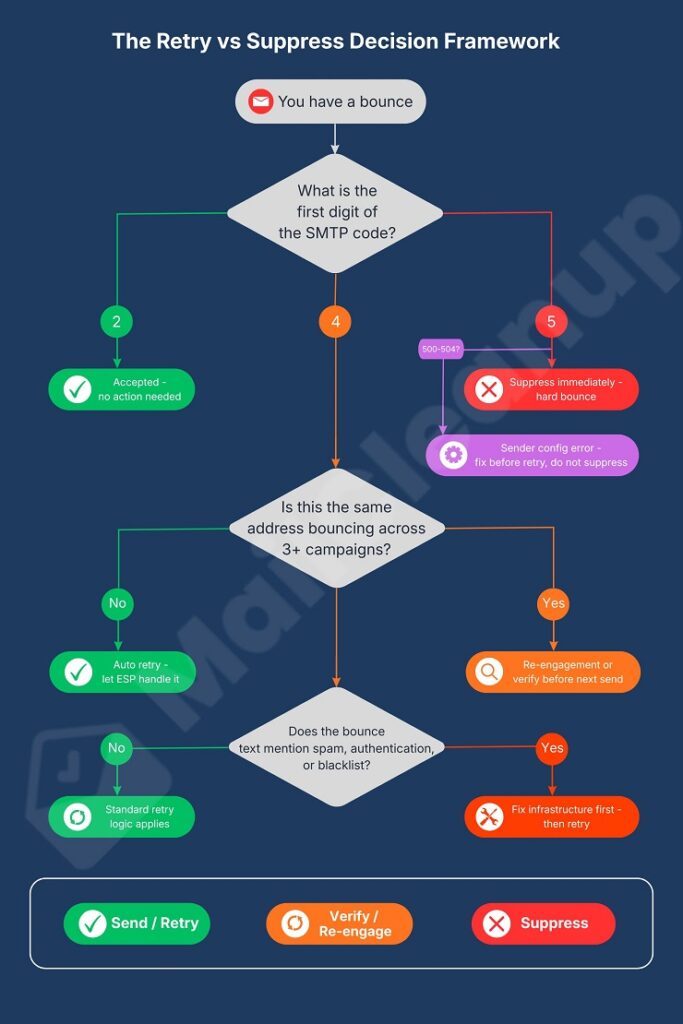
The Decision Rules by Code Series
2xx – No action required The message was accepted. Monitor inbox placement and engagement metrics separately, but no bounce management action is needed.
4xx – First occurrence Retry. Let your ESP’s automatic retry logic handle the first occurrence of any 4xx code. Do not manually suppress addresses based on a single 4xx response.
4xx – Recurring (3+ campaigns, same address) Escalate. Move the address to re-engagement or run it through verification before the next send. Recurring soft bounces on the same address are a signal the automatic retry logic is not resolving.
5xx – Any occurrence Suppress immediately. No retry. No exceptions. Add to your master suppression list before the next campaign.
500–504 – Any occurrence Fix sender configuration first, then reassess. Do not suppress recipient addresses for configuration errors that originate on your side.
Here’s the full decision table:
| Code | Bounce Type | First Occurrence | Recurring | Suppress? | When to Escalate |
|---|---|---|---|---|---|
| 2xx | Success | No action | No action | No | Never |
| 421 | Soft | Auto retry at lower volume | Check ISP reputation | No | If pattern persists across 5+ campaigns |
| 422 | Soft | Auto retry | Re-engagement after 3 campaigns | If re-engagement fails | After 3 consecutive failures |
| 450 | Soft | Auto retry | Investigate at 3 campaigns | If investigation fails | After pattern confirmed |
| 451 | Soft | Auto retry | Review content | No | If spam text appears in message |
| 452 | Soft | Auto retry | Auto retry | No | Only if domain-wide pattern |
| 471 | Soft | Review content, retry | Review content harder | No | If becoming 554 pattern |
| 500–504 | Technical | Fix sender config | Fix sender config | No | Immediately – contact ESP |
| 550 5.1.x | Hard | Suppress | – | Yes – immediately | Check acquisition source |
| 550 5.7.1 | Hard | Suppress + fix infra | – | Yes | Fix infrastructure first |
| 550 5.7.26 | Hard | Fix DMARC immediately | – | Address only | Fix DMARC before next send |
| 551 | Hard | Suppress | – | Yes | None |
| 552 | Hard | One retry – then suppress | – | Yes if retry fails | None |
| 553 | Hard | Suppress | – | Yes – immediately | Check acquisition source |
| 554 | Hard | Suppress + read text | – | Yes | Read text – may be infra issue |
| 556 | Hard | Suppress all at domain | – | Yes – full domain | None |
The Codes That Require Sender-Side Action Before Any Retry
This is the subset of SMTP errors where suppressing the recipient address and moving on is not enough – because the underlying cause will affect your next send to a completely different address through the same broken infrastructure.
Authentication failure codes – 550 5.7.1, 550 5.7.26, 554 5.7.9 These codes indicate that your SPF, DKIM, or DMARC setup is either missing or failing verification at the receiving server. No list cleaning addresses this. Until the authentication records are corrected, every send through the same infrastructure faces the same rejection risk. Fix the email authentication issue first, then resume sending.
Blacklist codes – 550 5.7.606 (Outlook), 554 with blacklist text A blacklist rejection affects every message you send from the blocked IP or domain – not just the message that generated the bounce. Sending more volume while blacklisted compounds the problem. Get delisted first, then resume.
Rate limiting codes – 421 4.7.0 (Gmail), 421 4.7.0 (Yahoo) Retrying at the same volume after a rate-limiting SMTP error is the sending equivalent of pushing harder on a locked door. Reduce volume first. Let the retry queue process more slowly. Review your sending schedule to distribute volume more evenly across sending windows before scaling back up.
Sender configuration codes – 500–504 These require immediate contact with your ESP to diagnose and fix the configuration error before any further sending. Do not retry sends and do not suppress recipient addresses until the configuration is confirmed to be correct.
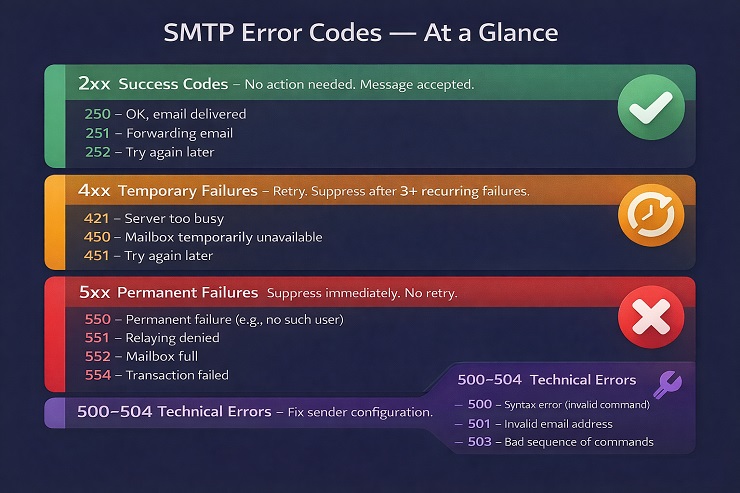
SMTP Error Codes Quick Reference
Use this table to look up any SMTP error code quickly – whether you’re reading a bounce report, diagnosing a delivery problem, or building suppression logic into your list management process. Every significant SMTP code is covered here with its bounce type and the immediate action required.
| Code | Name | Bounce Type | What It Means | Immediate Action |
|---|---|---|---|---|
| 2xx – Success | ||||
| 211 | System Status | None | Server status response | None – informational |
| 214 | Help Response | None | Response to HELP command | None – informational |
| 220 | Service Ready | None | Server ready to receive | None – proceed |
| 221 | Service Closing | None | Transmission channel closing | None – normal session end |
| 235 | Auth Successful | None | Authentication accepted | None – proceed |
| 250 | Action Completed | None | Message accepted by server | None – monitor engagement |
| 251 | User Not Local, Forwarding | None | Message forwarded | Monitor for secondary bounce |
| 252 | Cannot Verify, Will Attempt | None | Catch-all domain response | Treat with caution |
| 4xx – Temporary Failures | ||||
| 421 | Service Not Available | Soft | Rate limiting or throttling | Reduce volume – retry slowly |
| 422 | Mailbox Full | Soft | Recipient mailbox at capacity | Retry – suppress after 3 campaigns |
| 431 | Insufficient Storage | Soft | Server storage problem | Auto retry |
| 441 | Connection Timeout | Soft | Network connectivity issue | Auto retry |
| 442 | Connection Dropped | Soft | Connection lost mid-session | Auto retry |
| 447 | Timeout | Soft | Server response timeout | Auto retry |
| 450 | Mailbox Unavailable | Soft | Mailbox temporarily unavailable | Retry – investigate if recurring |
| 451 | Local Processing Error | Soft | Receiving server processing error | Retry – check content if recurring |
| 452 | Insufficient System Storage | Soft | Server-level storage issue | Auto retry |
| 454 | TLS Not Available | Soft | TLS negotiation failure | Retry – investigate TLS config if recurring |
| 471 | Anti-Spam Filter Block | Soft | Spam filter temporary rejection | Review content before retry |
| 5xx – Permanent Failures | ||||
| 500 | Syntax Error | Technical | Unrecognised SMTP command | Fix sender configuration |
| 501 | Syntax Error in Parameters | Technical | Malformed command parameters | Fix sender configuration |
| 502 | Command Not Implemented | Technical | Unsupported SMTP command | Fix sender configuration |
| 503 | Bad Sequence of Commands | Technical | Wrong command order | Fix sender configuration |
| 504 | Parameter Not Implemented | Technical | Unsupported command parameter | Fix sender configuration |
| 550 5.1.1 | User Unknown | Hard | Address does not exist | Suppress immediately |
| 550 5.1.2 | Bad Destination Address | Hard | Address format or domain error | Suppress immediately |
| 550 5.2.1 | Mailbox Disabled | Hard | Account deactivated | Suppress immediately |
| 550 5.7.1 | Policy Rejection | Hard | Authentication or reputation block | Suppress + fix infrastructure |
| 550 5.7.26 | DMARC Failure | Hard | DMARC authentication failing | Fix DMARC immediately |
| 550 5.7.606 | Blocked IP Range (Outlook) | Hard | Sending IP on Microsoft blocklist | IP delisting required |
| 551 | User Not Local | Hard | Address not on this server | Suppress immediately |
| 552 | Storage Exceeded | Hard | Permanent storage limit failure | Suppress if retry fails |
| 553 | Mailbox Name Not Allowed | Hard | Invalid address format | Suppress immediately |
| 554 | Transaction Failed | Hard | Broad permanent rejection | Suppress + read bounce text |
| 555 | Parameters Not Recognised | Technical | Sender configuration issue | Fix sender config – do not suppress |
| 556 | Domain Does Not Accept Mail | Hard | Entire domain rejects mail | Suppress all addresses at domain |
Now Speak SMTP – Here’s What to Do Next
SMTP error codes are not a technical curiosity for developers. They are the most precise diagnostic signal available to an email marketer who wants to understand exactly what happened to a message that didn’t reach its destination – and exactly what to do about it.
The shift this guide is designed to produce is a simple one. Instead of reading a bounce report and seeing a column of numbers that require a separate lookup to interpret, you now have a framework. The first digit tells you the severity. The enhanced code tells you the specific cause. The ISP identifier tells you which system generated the rejection and which response it requires. The retry vs suppress decision rules tell you what to do with that information before your next campaign goes out.
SMTP error codes are the diagnostic bridge between knowing that something failed and knowing what to fix. That middle layer is where most senders lose time – either by ignoring the codes entirely, or by applying generic fixes that don’t match the specific cause the code is pointing to.
For list quality problems flagged by 5.1.x codes, the fix starts with bulk verification – identifying and suppressing the invalid, disposable, and role-based addresses that are generating permanent failures before they compound further. MailCleanup processes lists of any size and returns the risk-scored output that tells you exactly which addresses to suppress, which to treat with caution, and which are safe to continue sending to – turning a column of bounce codes into a clean, actionable list in a single step.